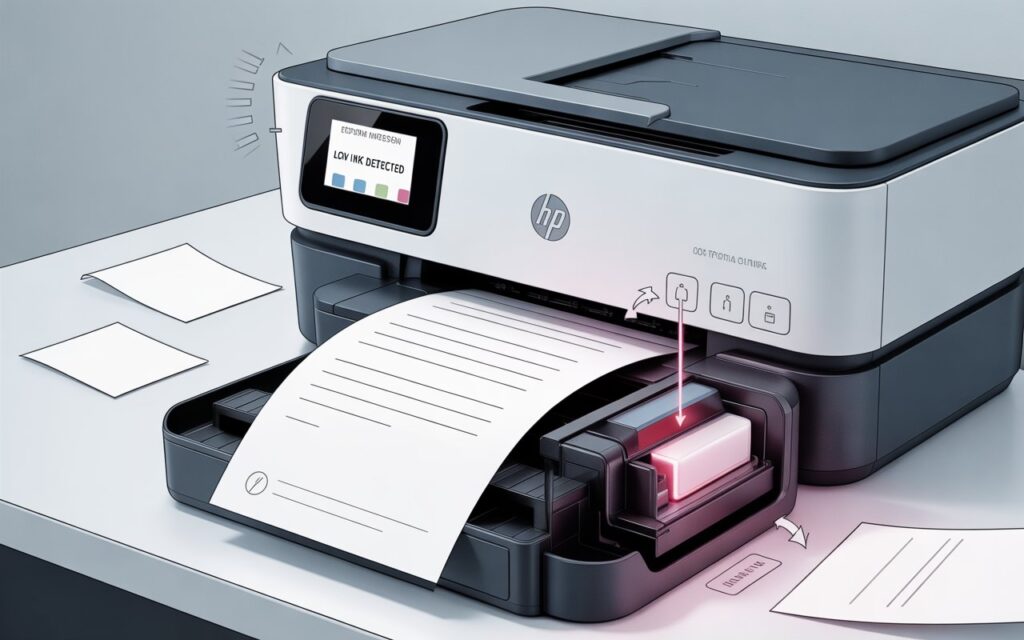
Quick Answer: HP printers printing blank pages after an Instant Ink cartridge install is usually caused by protective tape left on the cartridge, poor cartridge seating, dried ink nozzles, or a failed printer-to-HP subscription sync. Follow the step-by-step fixes below to resolve it in minutes.
Why Is My HP Printer Printing Blank Pages After Instant Ink Install?
Installing a new HP Instant Ink cartridge should be a simple plug-and-print experience. But blank pages after installation are one of the most common complaints reported by HP Instant Ink users in 2026.
Here are the most common reasons this happens:
- Protective tape not removed from the cartridge’s ink nozzle
- Cartridge not seated correctly inside the printer carriage
- Clogged or dried print nozzles from the old cartridge sitting too long
- HP Instant Ink subscription not synced with the new cartridge
- Incompatible or defective cartridge shipped from HP
- Outdated printer firmware or drivers causing communication errors
- Wrong paper type selected in print settings
- Low or empty cartridge despite being brand new (rare but possible)
The good news is that most of these issues can be resolved at home without any tools or technical expertise. Let’s go through every fix in order from simplest to most advanced.
Fix 1 – Remove the Protective Tape from the Cartridge
This is the number one reason HP printers print blank pages after a new Instant Ink cartridge install — and it is the easiest fix.
Every HP Instant Ink cartridge ships with a strip of orange or pink protective tape over the ink nozzle and copper contact strip. If this tape is not removed before installation, ink cannot reach the paper.
Steps to check and remove the tape:
- Open your printer’s ink cartridge access door.
- Press the tab to release and remove the newly installed cartridge.
- Hold the cartridge up to the light and look for any plastic tape or protective film.
- Gently peel off the tape starting from the tab end — do not touch the gold copper contacts or the ink nozzle area with your fingers.
- Reinstall the cartridge firmly until you hear a click.
- Close the access door and try printing again.
Important: Never reattach the tape once removed. Even partial tape coverage over the nozzle will cause blank or streaky pages.
Fix 2 – Reseat the Ink Cartridge Properly
Even if the tape was removed correctly, a cartridge that is not fully seated will fail to deliver ink. A loose cartridge also causes alignment errors and blank pages.
How to reseat the cartridge correctly:
- Turn your HP printer on and wait for it to be fully idle.
- Open the cartridge access door — the carriage will automatically move to the center.
- Press down on the cartridge lightly to release it and pull it out.
- Wait 10 seconds.
- Firmly push the cartridge back into its slot at an angle and press down until you feel and hear a definite click.
- Close the access door.
- Print a test page from your printer’s control panel.
If the carriage is making grinding noises or not moving properly, turn off the printer, unplug it, and manually slide the carriage to access the cartridge bay.
Fix 3 – Run the HP Printhead Cleaning Tool
When an HP Instant Ink cartridge sits in storage for a period of time before shipping, the ink in the printhead nozzles can partially dry or become blocked. Running the built-in cleaning tool flushes the nozzles and restores ink flow.
How to run printhead cleaning from the printer control panel:
- On your HP printer’s control panel, go to Settings or Tools.
- Select Printer Maintenance or Clean Printhead.
- Follow the on-screen prompts. The process usually takes 2 to 3 minutes.
- Print a test page immediately after to check the result.
How to run printhead cleaning from a Windows PC:
- Open Control Panel > Devices and Printers.
- Right-click your HP printer and select Printing Preferences.
- Click the Services tab.
- Select Clean the Print Cartridges and follow the prompts.
How to run printhead cleaning from a Mac:
- Go to System Settings > Printers & Scanners.
- Click your HP printer and select Options & Supplies.
- Click Utility and then Open Printer Utility.
- Select Clean Print Heads.
Tip: Run the cleaning cycle up to 3 times if the first attempt does not fully clear the blockage. After 3 attempts, let the printer rest for 30 minutes before trying again.
Fix 4 – Print a Test Page to Reset the Nozzles
Printing a test page forces ink through all nozzles and helps calibrate the new cartridge with the printer. Many users find that printing just one or two test pages is enough to completely resolve blank output.
To print a test page:
From the printer control panel:
- Go to Settings > Reports > Print Quality Report or Test Page.
- The printer will print a diagnostic page showing ink coverage, alignment, and color bands.
From Windows:
- Open Control Panel > Devices and Printers.
- Right-click your printer and select Printer Properties.
- Click Print Test Page.
From Mac:
- Go to System Settings > Printers & Scanners.
- Select your printer and click Open Print Queue.
- Click Printer in the menu bar and select Print Test Page.
If the test page shows solid ink coverage then your issue is resolved. If specific color bands are missing or lines appear in the test page, revisit Fix 3.
Fix 5 – Check Your HP Instant Ink Subscription Status
HP Instant Ink cartridges are linked to your active subscription. If your account has a billing issue, lapsed payment, or has not synced with your printer via the internet, the printer may refuse to print or output blank pages.
How to verify your subscription status:
- Go to instantink.hpconnected.com and sign in to your account.
- Check that your subscription is listed as Active.
- Look for any billing alerts, unpaid invoices, or plan suspensions.
- Confirm your printer appears as Connected in the device section.
If your printer shows as disconnected:
- Make sure your printer is connected to the same Wi-Fi network as before.
- On the printer panel, go to Wireless Settings and verify the network connection.
- Restart both your printer and Wi-Fi router.
- Allow 5 minutes for the printer to re-sync with HP servers.
Note: HP Instant Ink cartridges will stop working if your subscription is suspended, even if there is physically ink remaining in the cartridge. This is by design and is part of the HP Instant Ink terms of service.
Fix 6 – Update or Reinstall the HP Printer Driver
Outdated drivers can cause your computer to send incorrect print signals to the printer, resulting in blank pages even when the cartridge is functioning correctly.
How to update your HP printer driver on Windows:
- Visit support.hp.com and search for your exact printer model.
- Download the latest full feature driver package.
- Before installing, go to Control Panel > Devices and Printers, right-click your printer, and select Remove device.
- Run the downloaded driver installer.
- Follow the on-screen instructions and reconnect your printer when prompted.
How to update your HP printer driver on Mac:
- Click the Apple menu > System Settings > General > Software Update.
- Install any available printer-related updates.
- Alternatively, visit support.hp.com and download the Mac-compatible driver for your model.
Using HP Print and Scan Doctor (Windows only):
HP offers a free diagnostic tool called HP Print and Scan Doctor that automatically detects and fixes driver and connection issues.
- Download it free from support.hp.com/us-en/doc/ish_1739448-1739462-16.
- Run the tool and select your printer.
- Click Fix Printing and follow the guided prompts.
Fix 7 – Align the Cartridge Using HP Smart App
After installing a new Instant Ink cartridge, the HP Smart App may prompt you to run an alignment process. Skipping this step can occasionally cause print quality issues including partial or blank output.
How to align your cartridge using the HP Smart App:
- Download and open the HP Smart App (available free for Windows, Mac, iOS, and Android).
- Select your printer from the home screen.
- Tap Printer Settings or the gear icon.
- Select Printer Maintenance > Align Cartridges.
- Follow the on-screen instructions. The printer will print an alignment page and scan it automatically if your model supports it.
If your printer does not have a scanner, you may need to enter the alignment values shown on the printed alignment sheet manually into the app.
Fix 8 – Check Ink Levels & Cartridge Compatibility {#fix8}
Although rare, HP Instant Ink cartridges can occasionally arrive with less ink than expected, or the ink levels reported on-screen may be inaccurate.
How to check ink levels:
- Via HP Smart App: Open the app and look at the ink level indicators on the printer dashboard screen.
- Via printer control panel: Navigate to Settings > Ink Levels or Estimated Ink Levels.
- Via Windows: Go to Control Panel > Devices and Printers > right-click your printer > Printing Preferences > Services.
How to check cartridge compatibility:
- Look at the cartridge number printed on the side of the cartridge packaging.
- Compare it against the supported cartridge list in your printer’s manual or on HP’s website.
- HP Instant Ink cartridges are model-specific. Installing a cartridge designed for a different HP model will result in an error or blank pages.
If the cartridge is confirmed compatible but ink levels appear critically low on a brand-new cartridge, contact HP Instant Ink support to request a replacement shipment.
Fix 9 – Restore Printer to Factory Settings
If none of the above fixes have resolved the blank page issue, restoring your HP printer to its factory default settings can clear any corrupted configuration data or stuck print jobs that may be causing the problem.
Warning: A factory reset will remove all saved Wi-Fi networks, custom print settings, and fax configurations. You will need to set up your printer again after this step.
How to restore HP printer to factory settings:
From the printer control panel:
- Go to Settings or Setup.
- Select Printer Maintenance or Tools.
- Choose Restore Factory Defaults or Reset.
- Confirm the reset when prompted.
From HP Smart App:
- Open the app and select your printer.
- Go to Advanced Settings.
- Select Restore Defaults.
After the reset, reconnect your printer to Wi-Fi, sign in to your HP Instant Ink account, and install the cartridge again from scratch following the steps in Fix 1 and Fix 2.
When to Contact HP Instant Ink Support
If you have gone through all the fixes above and your HP printer is still printing blank pages, it is time to contact HP Instant Ink customer support directly. You should also reach out if:
- Your new cartridge appears empty on arrival
- The printer displays a “Cartridge Failure” or “Damaged Cartridge” error message
- The cartridge was visibly damaged when it arrived
- Your subscription is active but the printer keeps showing it as inactive
- You have already run 3 or more cleaning cycles without improvement
How to reach HP Instant Ink Support:
- Online Chat: Visit instantink.hpconnected.com and use the live chat support option
- Phone: Call HP’s official support line from the contact page on their website
- HP Smart App: Use the built-in support chat feature inside the app
- Virtual Agent: HP’s automated virtual agent can diagnose cartridge and account issues 24/7
Third-Party Note: If you are using 123instantink-guide.com, note that this is an independent support platform and is not affiliated with HP Inc. For cartridge replacements and subscription billing issues, always contact official HP support directly.
How to Prevent Blank Page Issues in the Future
Once your printer is working correctly again, here are some best practices to avoid this issue from happening again:
Store and install cartridges correctly:
- Always remove the protective tape before installing any HP Instant Ink cartridge.
- Never touch the gold copper contact strips or the ink nozzle area with bare fingers.
- Install new cartridges promptly — do not leave opened cartridges sitting out for extended periods.
Keep your printer and subscription in sync:
- Ensure your HP printer always has a stable Wi-Fi internet connection so it can communicate ink usage data with HP.
- Log in to your HP Instant Ink account at least once a month to verify your subscription status and billing is current.
Maintain your printer regularly:
- Run a printhead cleaning cycle once a month if you do not print frequently.
- Print at least a few pages weekly to prevent ink from drying in the nozzles.
- Keep your printer firmware and HP Smart App updated to the latest version.
Handle deliveries carefully:
- Inspect Instant Ink cartridge shipments as soon as they arrive.
- Report any damaged or defective cartridges to HP immediately while the issue is still fresh.
Conclusion
An HP printer printing blank pages after an Instant Ink cartridge install is a frustrating but almost always fixable problem. In the vast majority of cases, the issue comes down to one of three things: forgotten protective tape, a poorly seated cartridge, or clogged nozzles that need a quick cleaning cycle.
By following the nine fixes outlined in this guide — from removing tape and reseating the cartridge, to cleaning the printhead, checking your subscription status, updating drivers, and performing a factory reset — you should be able to get your HP printer working correctly again within 15 to 30 minutes.
If the problem persists after trying all these steps, the cartridge itself may be defective, and HP Instant Ink will typically ship you a free replacement. Do not hesitate to reach out to HP’s official support team for any issues related to your cartridge delivery or subscription account.
We hope this guide helped you fix your HP printer and get back to printing without interruption. If you found it useful, consider bookmarking this page for future reference — blank page issues can sometimes reappear after software updates or new cartridge installs.
Frequently Asked Questions (FAQs)
Q: Why is my HP Instant Ink cartridge not printing even though it shows ink?
A: The most likely cause is a clogged printhead nozzle. Run the printhead cleaning tool from your printer settings or HP Smart App. If cleaning does not help, check if your subscription is active and your printer is connected to the internet.
Q: Can I use HP Instant Ink cartridges if my subscription has expired?
A: No. HP Instant Ink cartridges are subscription-locked. Once your subscription expires or is cancelled, the cartridges will stop functioning, even if they still contain ink. You will need to either reactivate your subscription or purchase standard HP retail cartridges.
Q: How many times should I run the printhead cleaning cycle?
A: Run the cleaning cycle a maximum of 3 times consecutively. After 3 attempts, let the printer rest for at least 30 minutes before trying again. Repeated cleaning cycles without rest can deplete ink rapidly.
Q: My brand new HP Instant Ink cartridge arrived empty. What do I do?
A: This is rare but can happen. Log in to your HP Instant Ink account and report the issue through the support portal or chat. HP will typically ship a replacement cartridge at no charge.
Q: Does HP Instant Ink work if my printer is not connected to the internet?
A: HP Instant Ink requires an active internet connection to function correctly. Without connectivity, the printer cannot sync with HP’s servers to verify your subscription status, which can result in printing issues or the cartridge being rendered inactive.
Q: How long does HP Instant Ink delivery take after my cartridge runs out?
A: HP typically ships new cartridges within 1 to 3 business days of detecting low ink levels. Delivery generally takes 5 to 10 business days depending on your location.
Disclaimer: 123instantink-guide.com is an independent support platform and is not affiliated with or endorsed by HP Inc. All product names, trademarks, and logos are the property of their respective owners.