We have all been there. You sit down to print something important — a boarding pass, a school form, a work document — and your HP Instant Ink account just will not let you in. You try your usual password. Nothing. You try another one. Still nothing. That sinking feeling kicks in and you wonder: Did I forget my HP Instant Ink password?
Relax. You are not alone, and this is a very common situation. The good news is that recovering your HP Instant Ink login account is quick, straightforward, and does not require any technical knowledge. In this guide, we are going to walk you through every step of the process in plain, everyday language — so you can get back to printing without wasting time.
Read: Customer Support
Why Do People Forget Their HP Instant Ink Password?
Before we jump into the fix, it helps to understand why this happens in the first place. Most people set up their HP Instant Ink account once and then never think about the login again — the subscription just runs quietly in the background. So when you actually need to log in (maybe to change your plan, update a payment method, or check your ink delivery), you naturally draw a blank.
Other common reasons include:
- You created the account months or years ago with an old password you no longer use
- You changed passwords on other accounts but forgot to update this one
- Someone else in your household set up the account
- You recently got a new device and your saved passwords did not carry over
- The browser autofill stopped working after a system update
Whatever the reason, the solution is simple. Let us get into it.
Step-by-Step: How to Recover Your HP Instant Ink Account Password
Step 1 — Go to the Official HP Instant Ink Login Page
Open your web browser and navigate to the official HP Instant Ink sign-in page at instantink.hpconnected.com/signin
Make sure you are on the official HP website. Watch out for third-party sites that look similar but are not affiliated with HP — always check the URL before entering any personal information.
Step 2 — Click on “Forgot Password”
On the login screen, you will see a field for your email address and password. Beneath the password field, there is a link that says “Forgot Password?” — click on that.
This is the standard password recovery option and it is completely safe to use.
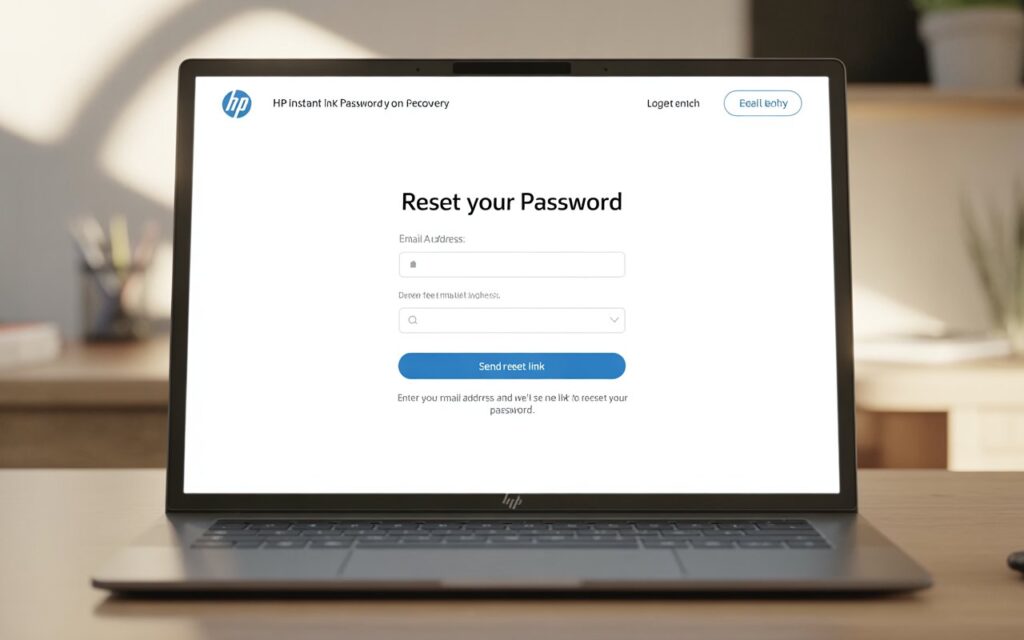
Step 3 — Enter Your Registered Email Address
A new page will open asking you to type in the email address linked to your HP Instant Ink account. Enter the email you used when you originally signed up.
Not sure which email you used? Here are a few tips:
- Check your inbox for any old emails from HP or HP Instant Ink — the confirmation email from when you first signed up will show the registered address
- If you have multiple email accounts, try each one
- Look for emails with subjects like “Welcome to HP Instant Ink” or “Your Instant Ink subscription”
Step 4 — Check Your Email Inbox for the Reset Link
After entering your email, HP will send a password reset link to that address. This usually arrives within a few minutes.
If you do not see it:
- Check your spam or junk folder — it sometimes ends up there
- Make sure you typed your email address correctly
- Wait a few minutes and then refresh your inbox
Step 5 — Click the Reset Link and Create a New Password
Once the email arrives, open it and click the reset link. This will take you to a secure page where you can set a brand new password.
When creating your new password, make it:
- At least 8 characters long
- A mix of uppercase and lowercase letters
- Including at least one number and one special character (like @ # $ !)
- Something you have not used on this account before
A strong password keeps your account safe and your billing information protected.
Step 6 — Log In With Your New Password
Once you have created your new password, go back to the HP Instant Ink login page and sign in using your email address and the new password you just set.
You should now have full access to your account dashboard.
What If You No Longer Have Access to Your Registered Email?
This is a trickier situation, but it is still solvable. If you have lost access to the email address tied to your HP Instant Ink account, here is what you should do:
Contact HP Instant Ink Customer Support directly. The support team can verify your identity through other means — such as your account number, printer serial number, billing address, or the last four digits of the card on file — and help you update your registered email to one you can currently access.
You can reach support through the live chat or contact form on this website, or by visiting HP’s official support channels.
Trouble Getting the Reset Email? Try These Fixes
Sometimes the password reset email just does not show up. Here are the most effective troubleshooting steps:
1. Check your spam or junk folder
Email providers sometimes flag automated messages as spam. Look there before assuming the email was not sent.
2. Wait a few extra minutes
During busy periods, emails can be slightly delayed. Give it 5 to 10 minutes before requesting another reset link.
3. Add HP to your safe senders list
In your email settings, whitelist the HP Instant Ink email domain so future messages are not filtered out.
4. Try a different browser
Sometimes browser extensions or security settings can interfere. Try opening the reset process in a fresh browser like Chrome, Edge, or Firefox.
5. Clear your browser cache and cookies
An outdated cache can sometimes cause login pages to behave unexpectedly. Clear your browser data and try again.
6. Disable VPN temporarily
If you are using a VPN, it may be blocking certain email confirmations. Try turning it off briefly while you complete the account recovery.
Common HP Instant Ink Login Error Codes and What They Mean
If you are seeing an error message while trying to log in or reset your password, here is a quick guide to the most common ones:
| Error Code / Message | What It Means | How to Fix It |
| Invalid email or password | Credentials do not match what is on file | Use the forgot password option |
| Account not found | Email is not registered | Try a different email address |
| Too many attempts | Account temporarily locked after multiple failed logins | Wait 15–30 minutes, then try again |
| Reset link expired | The password reset link is only valid for a limited time | Request a fresh reset link |
| Error 0x83C0000A | Printer connectivity or subscription sync issue | Restart printer and check Wi-Fi |
| Subscription not detected | Printer is not recognizing your active plan | Re-enroll or contact support |
How to Keep Your HP Instant Ink Account Secure Going Forward
Now that you are back in your account, it is a good idea to take a few minutes to make sure this does not happen again.
Use a password manager. Apps like Bitwarden, 1Password, or even the built-in password manager in Chrome or Safari can securely save your login details. You never have to remember a password again — the app does it for you.
Enable two-factor authentication (2FA) if available. This adds an extra layer of security so that even if someone gets your password, they still cannot access your account without a second verification step.
Keep your email address up to date. If you ever change your primary email, log in to your HP Instant Ink account and update the registered address right away. This ensures you can always receive password reset links and important account notifications.
Write down your credentials somewhere safe. A physical notebook kept in a secure place works fine for this. Not glamorous, but effective.
When to Contact HP Instant Ink Customer Support
Most password recovery situations can be resolved on your own by following the steps above. However, there are times when you will want to reach out to a support agent directly:
- You no longer have access to your registered email
- Your account appears to have been compromised or hacked
- You are receiving billing charges but cannot log in to investigate
- The reset email never arrives despite multiple attempts
- You are seeing an error code that is not resolving on its own
Our support team is available to help you through any of these situations. You can reach us through the Contact page or the Live Customer Support section of this website.
Frequently Asked Questions
Q: How long does the HP Instant Ink password reset link last?
A: The reset link is typically valid for a short window — usually 24 hours. If it has expired, simply request a new one from the login page.
Q: Can I use my HP Connected account to log in to HP Instant Ink?
A: Yes. HP Instant Ink uses HP Connected credentials. If you have an HP Connected account, you can use the same email and password to sign in.
Q: What if my HP Instant Ink account was set up by someone else?
A: If a family member or colleague originally set up your account, you will need to contact them for the login details — or reach out to HP support with proof of account ownership to take over the account.
Q: Will resetting my password affect my subscription or ink deliveries?
A: Not at all. Your subscription, plan, and scheduled deliveries remain completely unaffected when you reset your password.
Q: My account says it is locked. What do I do?
A: Accounts typically lock temporarily after several failed login attempts. Wait about 30 minutes and try again. If the account remains locked, contact support for manual assistance.
Conclusion
Forgetting your HP Instant Ink password is frustrating, especially when you need to print something urgently. But as you have seen in this guide, the recovery process is simple and takes just a few minutes. All you need is access to your registered email address and you will be back in your account before you know it.
To recap the key steps: visit the HP Instant Ink login page, click “Forgot Password,” enter your registered email, follow the reset link, and create a strong new password. If you run into any issues along the way — like not having access to your email or seeing a confusing error code — do not hesitate to reach out to our customer support team. We are here to help.
And once you are back in, take a moment to save your new password somewhere safe. A little preparation now means one less headache the next time you sit down to print.
Need more help with your HP Instant Ink account? Browse our other guides on subscription plans, error code fixes, and printer setup — or get in touch with our support team directly through the Contact page.