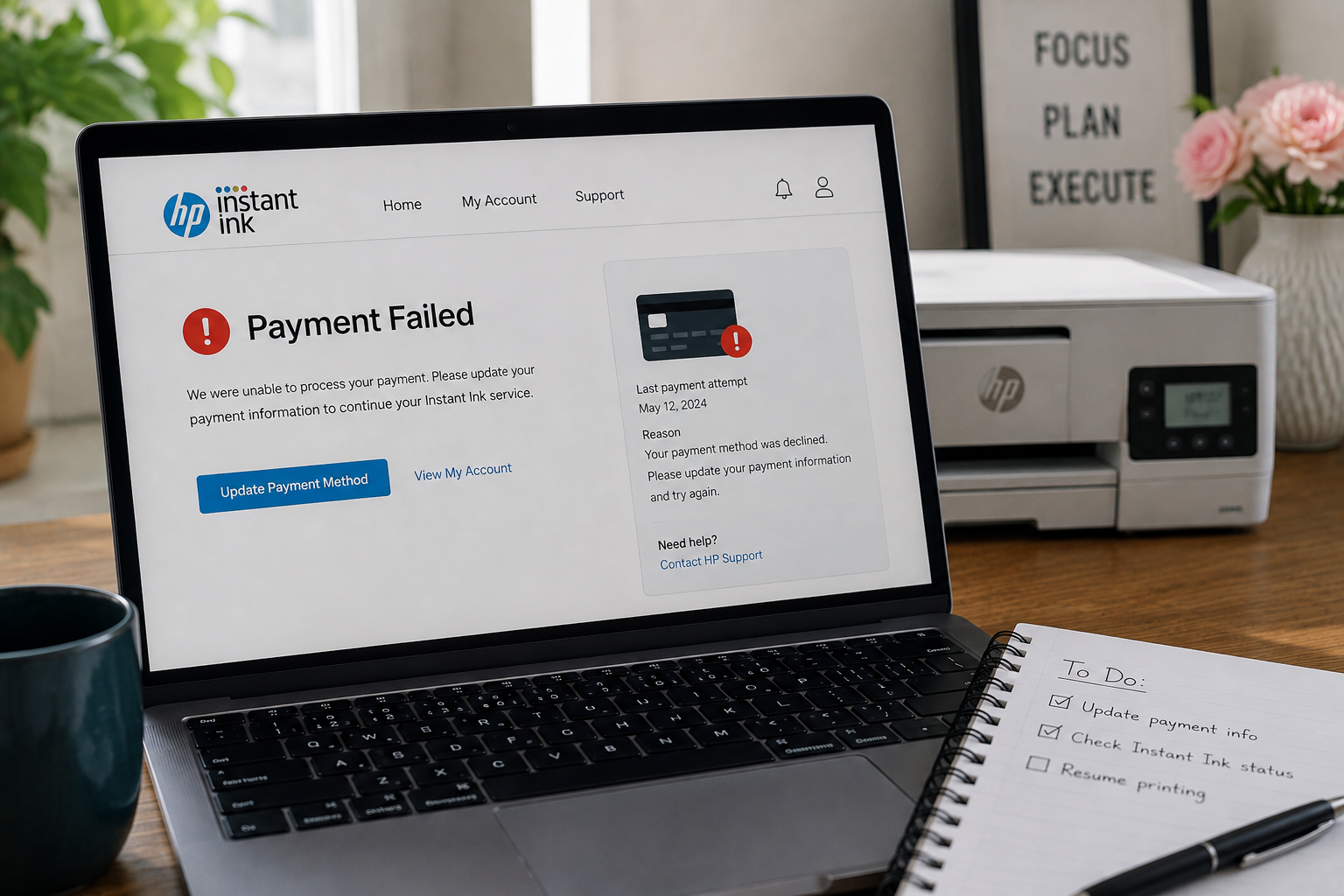
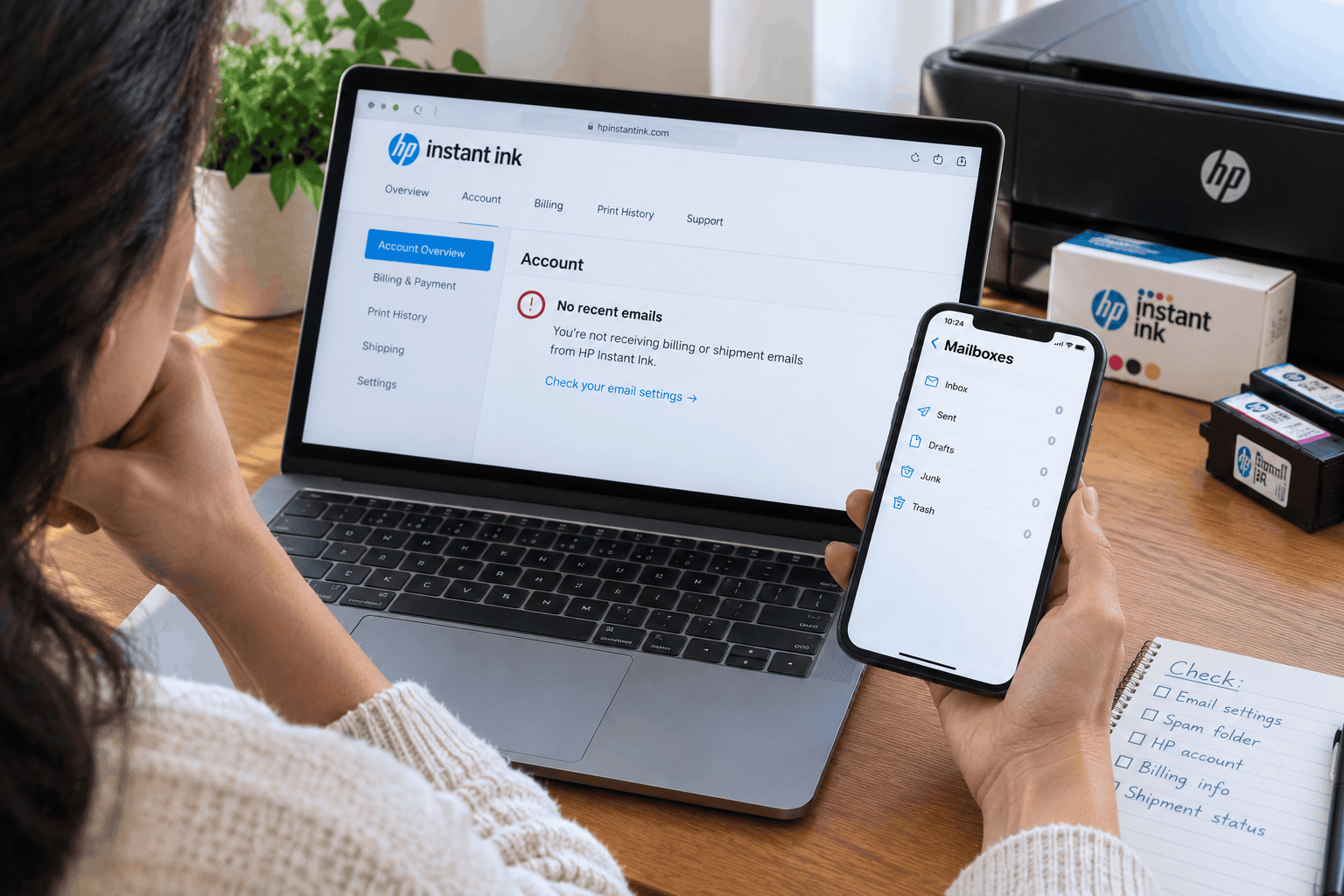
If your HP Instant Ink account is not receiving billing or shipment emails, it’s easy to miss a payment failure, an upcoming charge, or a cartridge dispatch — and that can have real consequences for your subscription. In most cases the emails are being sent, but something between HP’s mail system and your inbox is quietly blocking or diverting them.
HP Instant Ink billing and shipment emails most commonly go missing because they’re filtered into spam or promotions folders, the email address on the account is outdated, or HP’s sending domain has been blocked by the recipient email provider. Checking spam folders, adding HP’s sending address to your contacts, and verifying the email on your account resolves the issue in most cases.
Missing HP Instant Ink emails is more consequential than it might first appear. Billing notification emails are often the only early warning that a payment has failed — and without that warning, the account can move through a grace period and into suspension before you’re even aware something went wrong. Shipment emails are equally important: they confirm when ink cartridges have been dispatched and give you tracking details so you know when to expect delivery.
The reason these emails go missing is almost always on the delivery side rather than the sending side. HP Instant Ink does send these notifications — billing alerts, payment confirmations, shipment dispatches, and order updates — but they frequently fall victim to aggressive spam filters, outdated email addresses on the account, or sending domain blocks that many users never think to check.
This guide covers the types of emails HP Instant Ink sends, the most common reasons they don’t arrive, and the steps to fix delivery properly so you’re not caught off guard by a billing change or a missed shipment. For other account-related issues, our HP Instant Ink support guide covers related problems as well.
What Emails Does HP Instant Ink Send?
Before troubleshooting delivery, it helps to know exactly what types of emails the HP Instant Ink system sends — and what the sending addresses typically look like. This makes it easier to search your inbox and identify what you’ve been missing.
Billing & Payment Emails
Monthly charge confirmations, payment failure alerts, payment retry notices, and outstanding balance warnings.
instantink@hp.comShipment & Order Emails
Cartridge dispatch confirmations, tracking number notifications, delivery updates, and order status changes.
instantink@hp.comAccount & Subscription Emails
Plan change confirmations, cancellation notices, account suspension warnings, and re-enrollment confirmations.
hp@hpinstantink.comInk Level & Usage Alerts
Low ink notifications, page count updates, and alerts when ink levels suggest a new shipment is being prepared.
instantink@hp.comAccount Security Emails
Password reset links, login verification messages, and email address change confirmations.
noreply@hp.comWelcome & Confirmation Emails
Initial enrollment confirmation, plan selection confirmation, and printer enrollment success notifications.
instantink@hp.comBefore making any changes, search your inbox — including spam and promotions — for emails from @hp.com or @hpinstantink.com. If results appear in spam or are missing entirely, that tells you exactly which part of the fix to focus on.
Why HP Instant Ink Billing and Shipment Emails Go Missing
There are several distinct reasons HP Instant Ink account emails fail to reach the inbox. Understanding which one applies to your situation points directly to the right fix.
Spam or Junk Filter Diversion
The most common cause. HP’s sending domains are frequently flagged by Gmail, Outlook, Yahoo, and other providers as promotional or bulk mail. The emails are delivered — just not to the inbox. They land in Spam, Junk, or Promotions without any notification.
Outdated Email Address on Account
If you switched email providers or changed your primary email at some point and didn’t update your HP Instant Ink account, all notifications are going to an address you no longer check — or that may no longer exist.
HP Domain Blocked or Previously Unsubscribed
A previously unsubscribed email notification or a manually added block rule can prevent all emails from HP’s sending domains from reaching the inbox — including critical billing and shipment alerts that weren’t intended to be blocked.
Work or School Email Restrictions
Corporate, school, and managed email accounts often have strict inbound filtering rules. Emails from external commercial senders — including subscription service notifications — are frequently blocked or quarantined at the server level.
Email Client Filtering Rules
A filter or rule set up in Outlook, Apple Mail, or Thunderbird can automatically move emails from HP to a specific folder — or delete them before they’re seen. These rules are often forgotten after being set up.
Notification Preferences Turned Off
HP Instant Ink has notification preference settings within the account dashboard. If email notifications were toggled off — possibly during a plan change or account update — HP won’t send those alerts regardless of inbox settings.
How to Fix Missing HP Instant Ink Billing and Shipment Emails
Work through these steps in order. Most missing email situations are resolved within the first three steps. The later steps address less obvious but equally real causes.
-
Check spam, junk, and promotions folders immediately. Open your email account and search every folder — not just the inbox — for emails from
@hp.comor@hpinstantink.com. In Gmail, check the Promotions and Social tabs as well as the Spam folder. In Outlook and Yahoo Mail, check the Junk folder. If HP emails are found there, this confirms the delivery issue and the next steps will fix it going forward. -
Add HP’s sending addresses to your contacts. Adding the sender to your contacts is one of the most effective ways to prevent future spam filtering. Add
instantink@hp.comandhp@hpinstantink.comto your contacts or address book. Most email providers treat known contacts as trusted senders and stop filtering their emails into spam. In Gmail, clicking “Not spam” on any HP email found in the spam folder also trains the filter to deliver future emails to the inbox. - Mark any HP emails found in spam as “Not Spam.” If you find HP emails in your spam or junk folder, mark each one as “Not Spam” or “Not Junk.” This signals to your email provider’s filtering system to reclassify future emails from that sender as legitimate. Doing this for multiple emails is more effective than doing it for just one.
- Log in to your HP Instant Ink account and verify your email address. Go to hpinstantink.com, sign in, and navigate to your account settings or profile section. Check the email address on file carefully. If it’s an old address, contains a typo, or is an address you no longer have access to, update it to your current active email address immediately.
- Check your email notification preferences in the account dashboard. Within your HP Instant Ink account settings, look for a notifications or communication preferences section. Confirm that email notifications for billing, shipments, and account alerts are all enabled. If any have been turned off, re-enable them and save the changes.
-
Create a filter or allowlist rule in your email client. In Gmail, Outlook, Apple Mail, or whichever client you use, create a filter that automatically moves emails from
@hp.comand@hpinstantink.comto your inbox and marks them as important. This is a more permanent fix than relying on the spam filter’s automatic learning. The exact steps vary by client but are usually found under Settings → Filters or Rules. -
Check for any existing block rules on HP’s domains. In your email settings, look for any blocked senders list or blocked domain list. If
hp.comorhpinstantink.comappears there — perhaps added accidentally or during an earlier spam complaint — remove it. A domain block will override all other settings and prevent delivery regardless of any other fixes applied. - If using a work or school email, switch to a personal address. Work and school email accounts frequently have server-level filtering that is not configurable by individual users. If HP emails aren’t arriving on a work email and you can’t adjust the filtering settings, updating your HP Instant Ink account to a personal email address such as Gmail or Outlook.com is the most reliable long-term fix.
When you change the email address on your HP Instant Ink account, HP typically sends a confirmation to both the old and new address. Check both inboxes for this confirmation. If the new address receives it successfully, email delivery is resolved going forward.
Provider-Specific Spam Filter Fixes for HP Instant Ink Emails
The steps to whitelist or allowlist an email sender vary by provider. Here’s how to do it for the most commonly used email services:
| Email Provider | How to Whitelist HP Instant Ink Emails |
|---|---|
| Gmail | Find the HP email in Spam → click “Not spam.” Then go to Settings → Filters and Blocked Addresses → Create a filter → enter @hp.com in the From field → select “Never send to spam” and “Always mark as important.” |
| Outlook / Hotmail | Find the email in Junk → right-click → “Mark as not junk.” Or go to Settings → View all Outlook settings → Mail → Junk email → Add instantink@hp.com to the Safe senders list. |
| Yahoo Mail | Find the email in Spam → click “Not spam.” Then go to Settings → More settings → Filters → Add a filter for emails from @hp.com directed to the inbox folder. |
| Apple Mail (iCloud) | Add instantink@hp.com to your Contacts. Apple Mail treats known contacts as safe senders. You can also go to Mail → Preferences → Rules and add a rule to move HP emails to the inbox. |
| Proton Mail | Go to Settings → Filters → Allowlist and add hp.com and hpinstantink.com as allowed domains. Alternatively, add the sender address directly to Contacts. |
Common Situations: HP Instant Ink Account Not Receiving Emails
This is one of the most common consequences of missing HP Instant Ink emails. The billing alert was sent but landed in spam, and by the time the subscription was suspended and printing stopped, the grace period had already closed. Going forward, adding HP’s sending addresses to your contacts and creating a filter rule for their domain is the most reliable prevention. It’s also worth checking the account dashboard directly every few weeks as a backup — it always reflects the current billing status regardless of email delivery.
Shipment notifications sometimes come from a slightly different sender or delivery system than billing emails. One thing to check is whether you received the billing confirmation but not the shipment dispatch — if so, the shipment email may have been filtered separately. Search your spam folder specifically for emails with subject lines containing words like “shipped,” “dispatched,” or “tracking.” If found, marking those as “Not spam” and adding the sending address to contacts should restore future delivery.
This is almost always because the email address on the HP Instant Ink account wasn’t updated at the same time as the personal email change. Log into your account at hpinstantink.com and check the email address under account settings. If it still shows the old address, update it to the current one. HP will typically send a confirmation to both addresses when the change is made — once confirmed, all future notifications will go to the updated address.
Work email accounts are frequently subject to inbound filtering rules managed at the organization level that individual users can’t override. Commercial subscription emails from HP are a common target for these filters. The most reliable fix in this situation is to update your HP Instant Ink account to a personal email address — a Gmail, Outlook.com, or similar account that you control fully. This removes the organizational filtering layer entirely and gives you direct control over how HP’s emails are handled.
How to Stay Informed Even When Emails Are Unreliable
While fixing email delivery is the right long-term solution, setting up a secondary way to monitor your account that doesn’t depend on email notifications is a practical safety net:
- Check your account dashboard monthly — A quick login to hpinstantink.com takes under a minute and gives you the current billing status, upcoming charge date, shipment status, and any account alerts — all in one place, no email required.
- Note your billing date and check around it — Your billing date is shown in the account dashboard. Logging in around that date each month lets you catch any payment issues before the grace period starts, regardless of whether a notification email arrived.
- Use the HP Smart app for shipment tracking — The HP Smart app can display ink levels and account status and is an alternative channel for seeing when cartridges are being dispatched, without relying on email notifications.
- Set a calendar reminder for quarterly account checks — For users who don’t want to check monthly, a quarterly account login is often enough to catch subscription issues before they escalate to a suspension.
- Keep your payment method proactively current — Updating card details whenever a renewal or replacement arrives removes the most common cause of billing failures — which is the very event that most urgently needs an email notification to land on time.
Your HP Instant Ink account dashboard at hpinstantink.com is always current — it shows billing status, payment history, shipment tracking, and subscription state in real time. When email notifications are unreliable, the dashboard is the most dependable way to stay on top of your account.
If Missing Emails Have Already Caused Account Problems
If missing billing emails have led to a suspended account or a missed payment, resolving the email delivery issue is only part of the fix. The account itself will also need attention — typically updating the payment method and clearing any outstanding balance through the account dashboard to restore printing access.
If you’re using a work or school email that consistently blocks HP’s notifications and the filtering can’t be changed at the organization level, switching your HP Instant Ink account to a personal email address is the cleanest long-term solution. A free personal account like Gmail gives you full control over filtering rules and reliably delivers commercial subscription notifications without managed-environment restrictions.
Going forward, treating the account dashboard as your primary source of account information — and using email as a secondary alert — is a practical approach that works regardless of how any particular inbox handles HP’s sending domains.
Frequently Asked Questions
Common questions about missing HP Instant Ink billing and shipment emails
HP’s subscription notification emails are sent from commercial mailing systems, which email providers frequently classify as promotional or bulk mail and route to spam. This is a common issue with subscription services in general — it’s not specific to HP. Adding HP’s sending addresses to your contacts and creating a filter rule that sends emails from their domain directly to your inbox is the most reliable way to prevent future misdirection.
The primary sending addresses used by HP Instant Ink are instantink@hp.com and hp@hpinstantink.com. Adding both to your safe senders list, contacts, or allowlist covers billing emails, shipment notifications, and account alerts. Some security-related emails may also come from noreply@hp.com, so adding that as well provides comprehensive coverage.
Log into your HP Instant Ink account at hpinstantink.com and go to your account settings or profile section. Look for an option to edit your email address or contact information. After entering the new address and saving, HP will typically send a confirmation to both the old and new email. Once confirmed, all future billing and shipment notifications will be sent to the updated address.
Yes. Your HP Instant Ink account dashboard at hpinstantink.com shows the current status of any active shipment, including tracking information once the order has been dispatched. The HP Smart app is another option — it can display account and ink status information directly. If a shipment shows as dispatched in the dashboard but no email arrived, the shipment is still on its way and tracking details can be accessed through the account.
Possibly, yes. If HP billing alert emails are sitting in your spam folder, it’s worth checking your account dashboard immediately to see whether the subscription status shows any payment issues or flags. The spam folder find confirms that HP was sending the notifications — the question is whether any action-required emails were missed while they were being filtered. Log into your account to review the current status and billing history before taking any further steps.