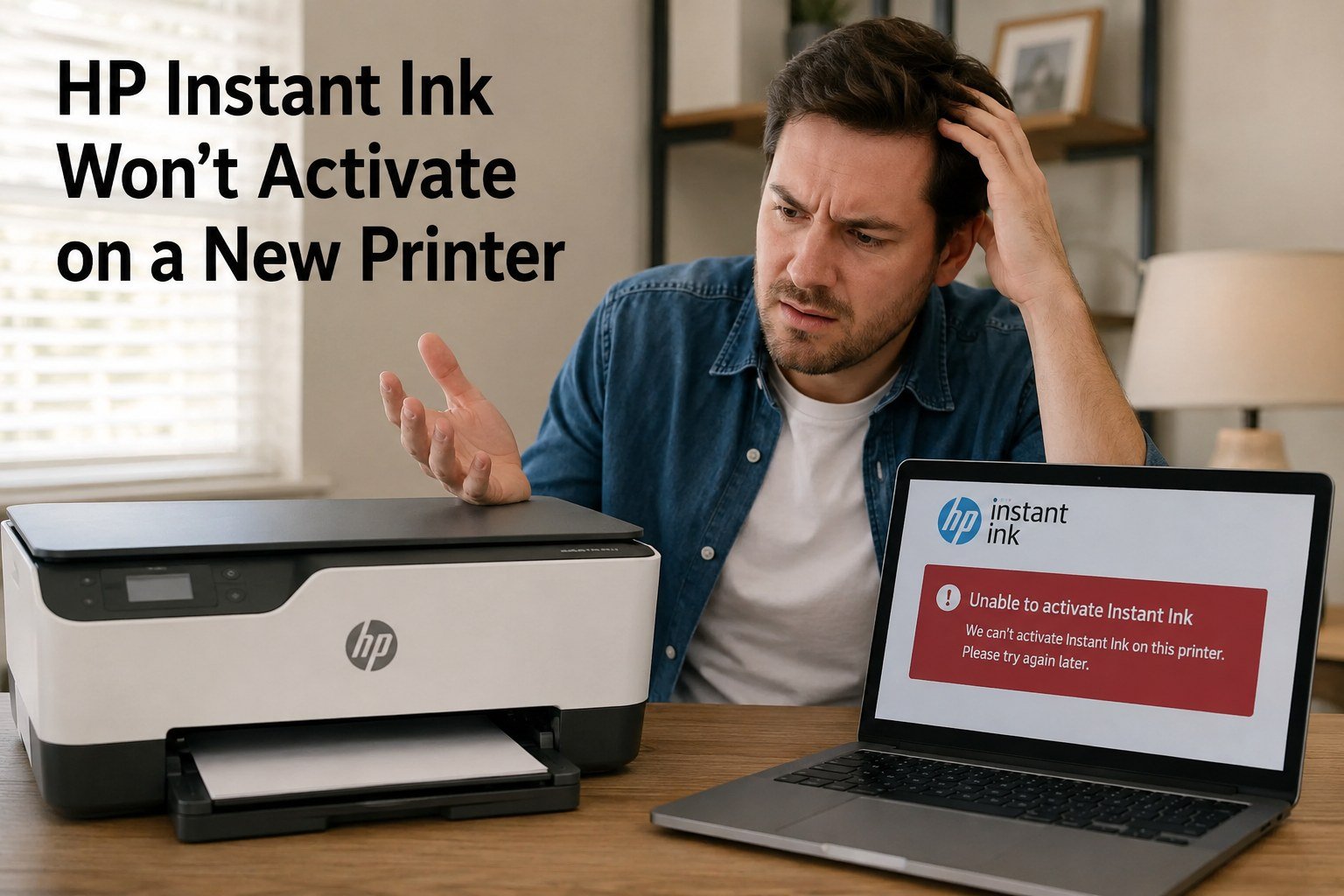
If HP Instant Ink won’t activate on your new printer, you’re likely dealing with a setup or account linking issue — not a defective printer or a broken subscription. Activation problems on new devices are among the most common things users run into when switching hardware, and in most cases the fix is simpler than it looks.
HP Instant Ink won’t activate on a new printer when the printer isn’t properly enrolled in your Instant Ink account, isn’t connected to the internet, or is still showing a previous printer as active. In most cases, enrolling the new printer through your HP Instant Ink account dashboard and allowing it to sync resolves the issue.
Getting a new printer should be straightforward — but when HP Instant Ink won’t activate on a new printer, it can quickly turn into a frustrating experience. The cartridges arrive, the printer is set up, and yet printing through the subscription simply doesn’t work. The cause is almost always tied to how the new device is linked to your Instant Ink account, not the hardware itself.
HP Instant Ink uses a cloud-based verification system. For the subscription to work, your specific printer needs to be enrolled and recognized under your account. A new printer — even one from the same brand or model family — is treated as a fresh device that needs to go through its own activation process. Skipping or partially completing that process is the most common reason HP Instant Ink won’t activate on a new printer.
This guide breaks down the most likely causes, how to check whether your activation is incomplete, and exactly how to work through it. For a broader look at common subscription issues, our HP Instant Ink support guide covers other error types as well.
Why HP Instant Ink Won’t Activate on a New Printer
There’s usually one of a handful of reasons behind an HP Instant Ink activation failure on a new device. Understanding which one applies to your situation makes the fix much quicker to find.
Printer Not Enrolled in Your Account
The most common cause. The new printer needs to be manually added to your Instant Ink account — it doesn’t link automatically just because you own one.
No Internet Connection During Setup
HP Instant Ink activation requires an active internet connection at the time of setup. If the printer wasn’t connected to Wi-Fi during enrollment, the activation may not have completed.
Wrong HP Account Used
If your printer was registered to a different HP account than your Instant Ink subscription, the two won’t be linked — and activation will fail.
Old Printer Still Active on Account
In some cases, an HP Instant Ink plan is tied to a specific previous printer. If that device is still showing as active on the account, the new printer may not enroll properly until the old one is removed.
Cartridges Arrived Before Activation Completed
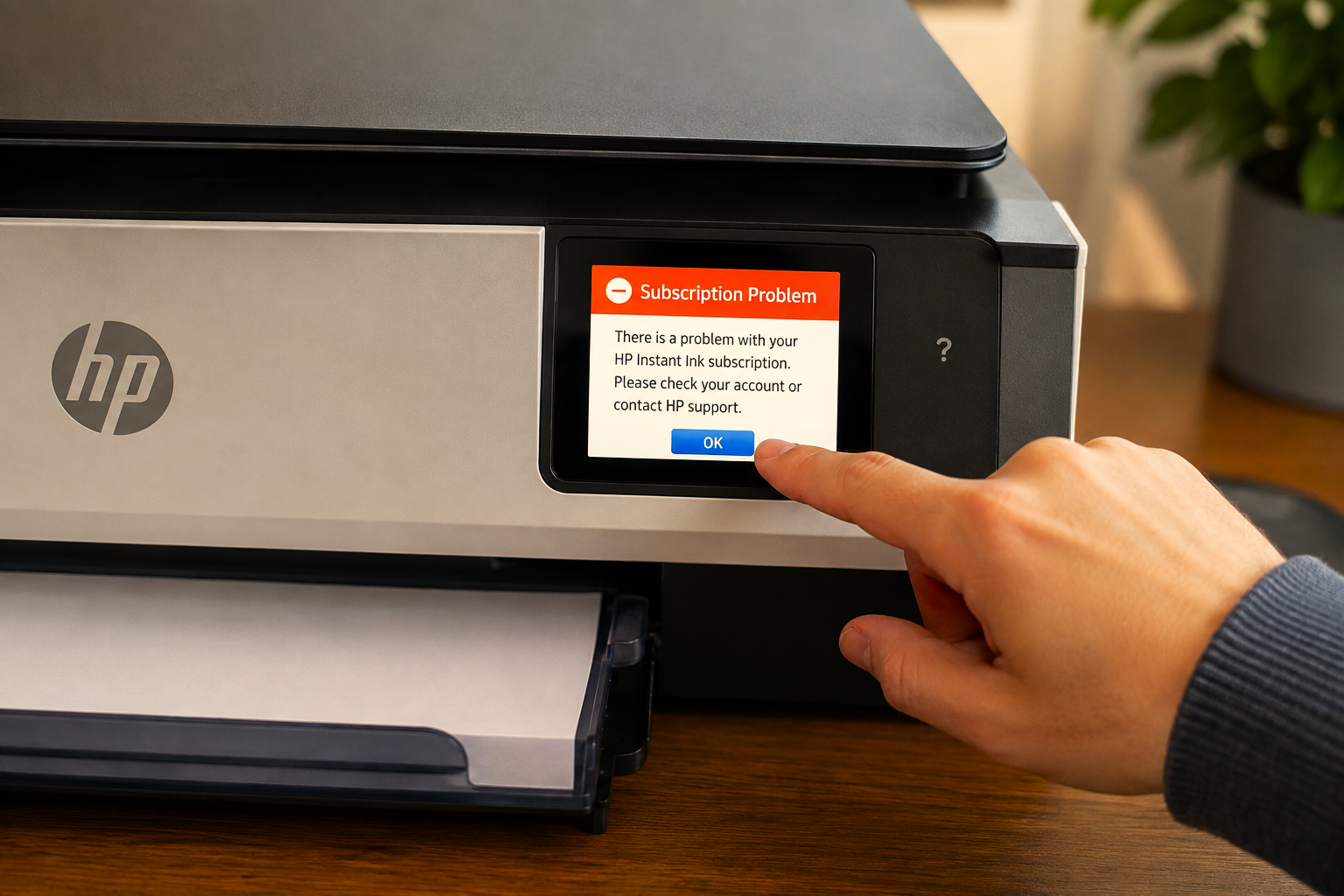
HP sometimes ships Instant Ink cartridges before the printer fully activates. Installing them before enrollment is complete can trigger a recognition error.
Printer Model Not Eligible for Instant Ink
Not every HP printer supports Instant Ink. If the new printer isn’t on the list of compatible models, activation simply won’t be possible on that device.
Is Your New Printer Compatible with HP Instant Ink?
Before working through any activation steps, it’s worth confirming that your new printer model is actually supported by HP Instant Ink. Not all HP printers are eligible — compatibility is generally limited to specific series within the HP lineup.
| Printer Series | Instant Ink Support | Notes |
|---|---|---|
| HP DeskJet (select models) | Supported | Check individual model numbers on HP’s site |
| HP ENVY / ENVY Inspire | Supported | Most models in this range are compatible |
| HP OfficeJet / OfficeJet Pro | Supported | Widely compatible, verify specific model |
| HP Smart Tank series | Not Supported | Tank printers use refillable ink — not subscription cartridges |
| HP LaserJet (most models) | Limited | HP Instant Ink Toner available for select models only |
| Older HP models (pre-2016) | Unlikely | Many older models lack the web-connected features required |
Your printer’s model number is usually printed on the front panel or underside of the device. You can verify Instant Ink compatibility by checking HP’s official Instant Ink enrollment page and searching for your specific model before going further with setup.
How to Fix HP Instant Ink Won’t Activate on a New Printer
Once you’ve confirmed your printer is compatible, work through these steps in order. In many cases, HP Instant Ink activation issues on a new printer are resolved within the first two or three steps.
- Connect the printer to Wi-Fi first. Before doing anything else, make sure your new printer has a stable internet connection. HP Instant Ink activation requires the printer to communicate with HP’s servers. Go to your printer’s wireless settings and connect to your home or office network before proceeding.
- Log in to your HP Instant Ink account. Visit hpinstantink.com and sign in using the same email address linked to your subscription. This is the account the new printer needs to be enrolled under.
- Check whether the old printer is still active. In your account dashboard, look at which printer is currently associated with your plan. If a previous device is still listed as active, you may need to remove it or update your printer assignment before the new one can enroll.
- Enroll the new printer in your account. Look for an option to add or change your enrolled printer. This typically involves entering a printer claim code — a short alphanumeric code that can usually be found by printing a test page or going into the printer’s HP Web Services settings.
- Print a test page to generate the claim code (if needed). On most HP printers, you can enable Web Services through the printer’s settings menu or touchscreen. Once enabled, the printer will print a sheet with the claim code automatically. Use this code to link the printer to your Instant Ink account.
- Wait for cartridges to be recognized after enrollment. If you already have Instant Ink cartridges installed, restart the printer after completing enrollment. Allow a few minutes for the printer to sync with your account. In many cases, the cartridges are recognized and printing becomes available shortly after.
- If cartridges arrived before activation, remove and reinstall them. Take the Instant Ink cartridges out, complete the enrollment steps above, restart the printer, and then reinstall the cartridges. This gives the printer a fresh opportunity to recognize them under the now-active subscription.
If HP Web Services is already enabled but no claim code printed, try disabling and re-enabling Web Services from the printer menu. This usually triggers a fresh sheet to print with a new code.
Things to Check in Your Instant Ink Account
Alongside the setup steps above, a few things inside your HP Instant Ink account are worth reviewing when activation isn’t working on a new printer:
- Email address match — Make sure you’re signing in with the exact email address your Instant Ink subscription is registered to. If you have multiple HP accounts, it’s easy to log in to the wrong one.
- Subscription status — Check that your subscription is currently active and not paused, suspended, or pending cancellation. A paused or suspended account won’t allow new printer enrollment.
- Printer limit on the plan — Most HP Instant Ink plans are tied to a single printer. If you’re trying to add a second printer, the plan may not support it without changes.
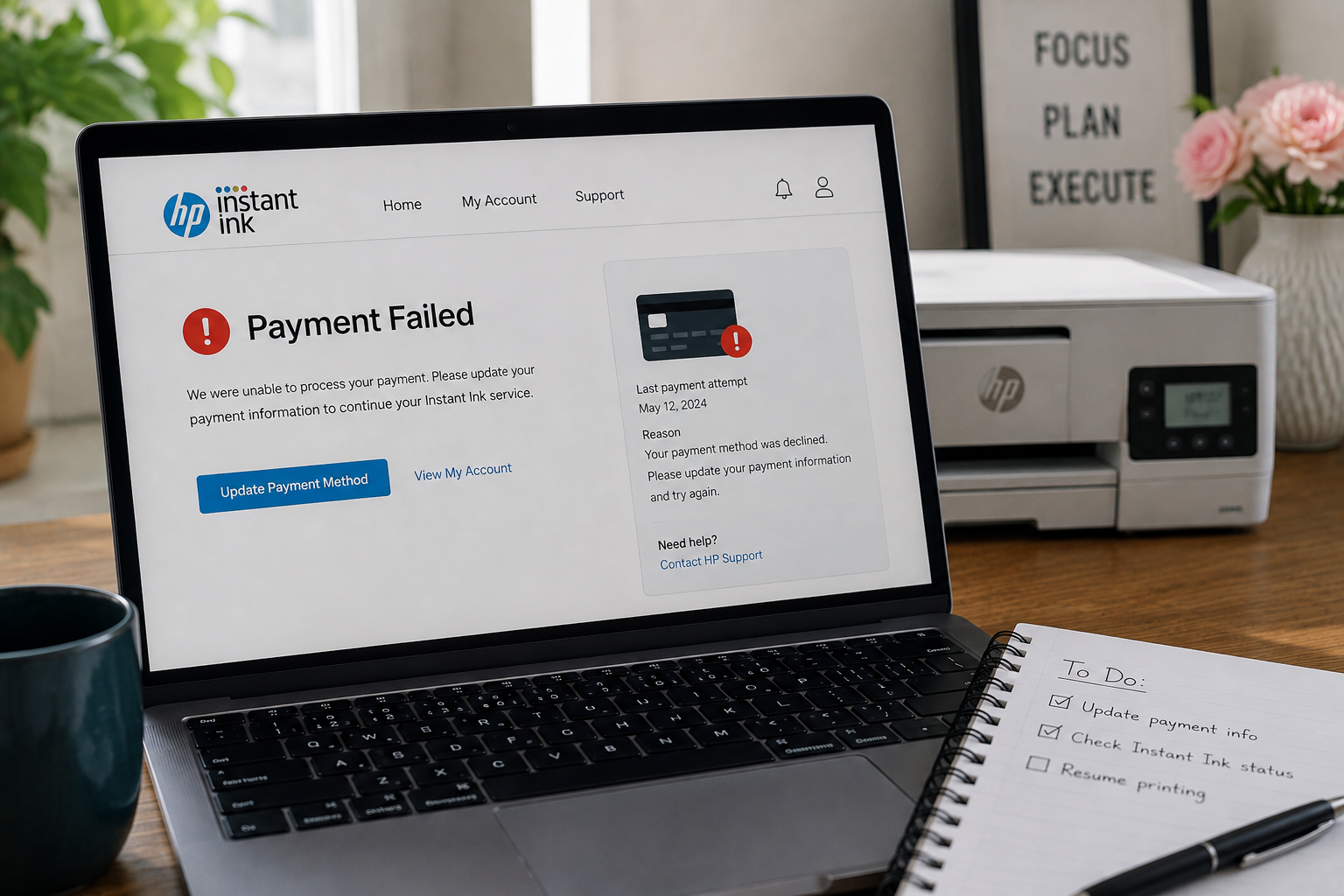
- Pending billing issue — A failed or outstanding payment can sometimes prevent new device enrollment. Check the billing section for any alerts before continuing with activation.
- Region match — Your HP account and printer should both be set to the same region (US, Canada, UK). A mismatch can occasionally cause enrollment errors.
Common HP Instant Ink Won’t Activate Situations
This is often because the printer wasn’t fully enrolled before the cartridges were installed. The printer recognizes them as Instant Ink cartridges but can’t verify they’re authorized because it isn’t yet linked to an active account. Complete the enrollment steps, restart the printer, and remove and reinstall the cartridges to prompt a fresh check.
HP Instant Ink cartridges are tied to an enrolled printer on your account. When you move to a new device, the subscription needs to be transferred to that printer through the enrollment process. Once the new printer is enrolled under your account, HP will typically send new cartridges for the new device.
This is almost always a network issue. HP Web Services requires an active internet connection to enable. Check that the printer is connected to Wi-Fi, that the network has a working internet connection, and that no firewall or router settings are blocking the printer’s outbound access. Restarting the router and printer together sometimes resolves this.
Syncing after enrollment can occasionally take longer than expected. One thing to check is whether the printer is still connected to the internet — if the Wi-Fi dropped after enrollment, the printer won’t have completed its sync. Reconnect to Wi-Fi, restart the printer, and give it another 10–15 minutes. If it still doesn’t respond, removing and reinstalling the cartridges often helps trigger a recheck.
If Activation Still Isn’t Working After All Steps
If you’ve worked through the enrollment process, confirmed the printer is compatible, and the subscription still won’t activate on the new printer, there are a couple of things worth considering before giving up on the process.
First, check whether your printer has any firmware updates available. On some models, an outdated firmware version can cause issues with HP Web Services and Instant Ink enrollment. Firmware updates are usually available through the printer’s settings menu or the HP Smart app.
Second, if the printer was purchased secondhand or as an open-box unit, there’s a possibility it was previously enrolled under a different HP account. In some cases, this can complicate enrollment under a new account. Resetting the printer to factory settings and starting the setup process fresh can help clear this kind of conflict.
If retail printing is needed in the meantime, standard non-Instant Ink cartridges that are compatible with your printer model will work without any subscription — no enrollment required.
Frequently Asked Questions
Common questions about HP Instant Ink activation on a new printer
In most cases, yes. HP Instant Ink is linked to a specific enrolled printer, not just to your account in general. When you switch to a new device, you’ll need to update your enrollment to include the new printer. This typically involves generating a claim code from the new printer and entering it into your account dashboard. Your subscription plan itself doesn’t change — only the device it’s tied to.
The claim code is generated by enabling HP Web Services on the printer. On most models, this can be done through the printer’s settings menu or touchscreen under a section labelled “Web Services” or “HP ePrint.” Once enabled, the printer will print a page that includes the claim code. You then enter this code in your HP Instant Ink account to complete enrollment.
In many cases, yes. When you enroll a new printer under your existing HP Instant Ink plan, HP typically ships cartridges that are compatible with the new device. The timing can vary. If you have Instant Ink cartridges from your old printer, they may or may not work on the new one depending on whether the cartridge series is the same — this varies by model.
Standard HP Instant Ink plans are generally linked to one printer at a time. If you want to use the subscription across two devices, you would typically need a separate plan for each. It’s worth checking your specific plan details in the account dashboard, as plan structures can vary.
In most cases, activation and syncing complete within a few minutes of enrolling the printer and connecting it to the internet. Occasionally it can take longer — up to 15–20 minutes — if there’s a delay in the account status syncing to the device. Restarting the printer after enrollment helps speed up the process. If it’s been several hours with no change, checking the internet connection and restarting again is worth trying.