A payment failure on your HP Instant Ink account can interrupt printing access quickly — sometimes within hours. Here’s why it happens, what the subscription system does in response, and the clearest path to getting it resolved.
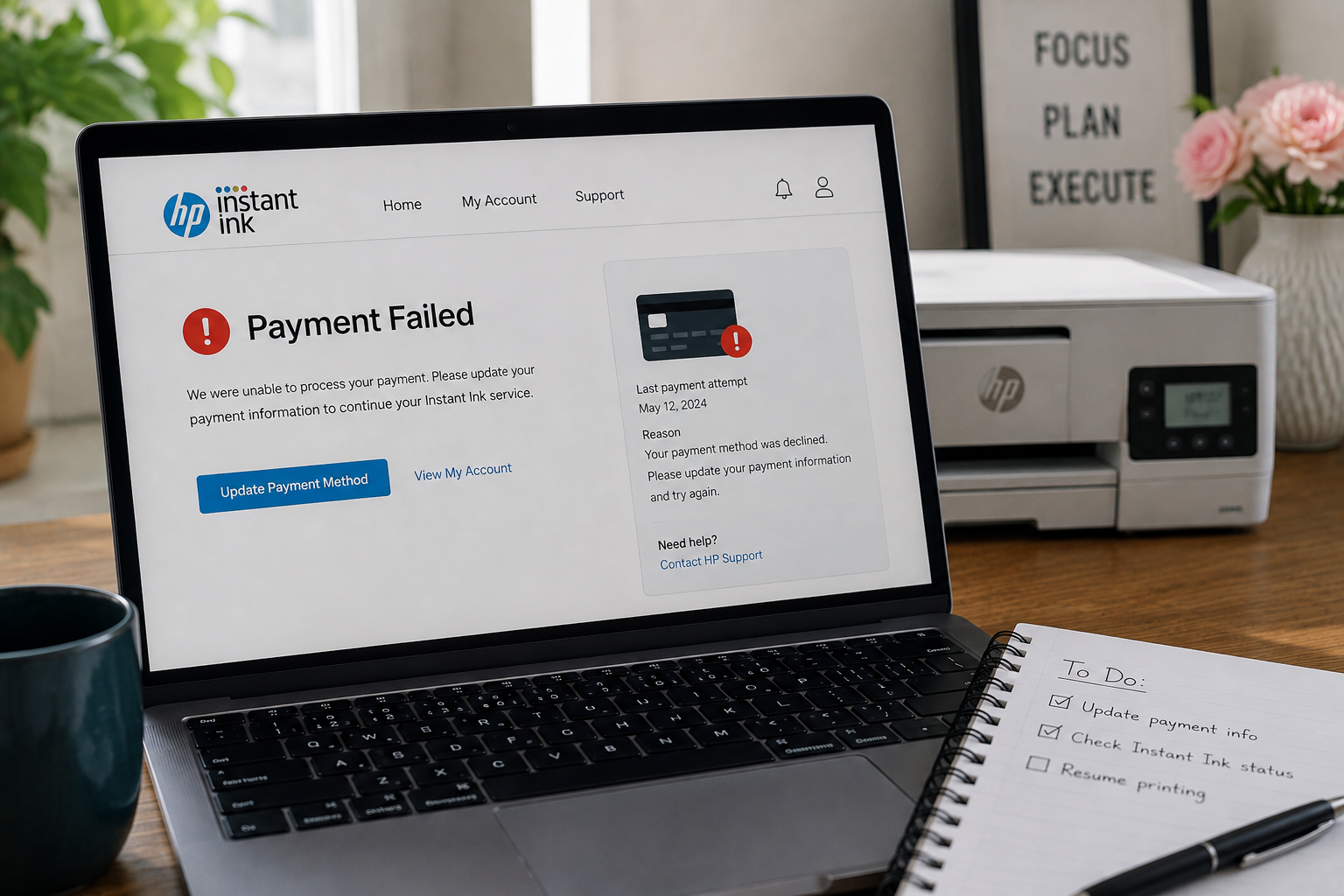
HP Instant Ink payment failures are typically caused by an expired card, insufficient funds, a billing address mismatch, or an outdated payment method on file. In many cases, updating your payment details in your HP Instant Ink account and restarting your printer is enough to restore printing access.
If you’ve seen an HP Instant Ink payment failed notification, you’re probably wondering why it happened and whether your printer is about to stop working. The short answer is — yes, a failed payment can affect your printing access, sometimes fairly quickly. But in most situations it’s straightforward to sort out once you know what’s causing it.
HP Instant Ink is a subscription service, and like any subscription, it depends on a successful monthly charge to stay active. When an HP Instant Ink payment failed error occurs, the system flags the account and begins a short grace window. After that window closes, cartridges linked to the subscription can be deactivated until the payment issue is resolved. Understanding this sequence is key to acting fast enough to avoid a printing interruption.
This guide covers the most common triggers, what happens to your account and cartridges during a payment failure, and exactly what steps to take to get things working again. If you’re also dealing with other subscription-related issues, our HP Instant Ink support guide covers a wider range of common problems in one place.
What Triggers an HP Instant Ink Payment Failure?
Payment failures on HP Instant Ink can happen for a handful of reasons. In many cases, it’s not something the user did intentionally — cards expire, banks flag transactions, and saved billing details fall out of date over time. Here are the most common causes:
Expired or Replaced Card
One of the most frequent causes. If your card was renewed or replaced, the number or expiry on file may no longer be valid.
Insufficient Funds
If the billing date lands on a day when your balance is low, the charge may be declined even if the card itself is valid.
Bank Security Block
Banks sometimes flag recurring charges from subscription services as suspicious — particularly if the charge originates from an unfamiliar merchant name.
Billing Address Mismatch
A billing address that doesn’t match what’s on file with your bank can cause a payment verification to fail, even with a valid card.
PayPal or Virtual Card Issues
Virtual card numbers and some PayPal configurations can cause issues if the underlying account or card changes without updating the Instant Ink billing info.
Account or System Sync Error
In less common cases, a technical issue during billing processing can cause a charge to fail even when the payment method is valid and funds are available.
What Happens to Your Account When HP Instant Ink Payment Failed?
When an HP Instant Ink payment failed situation occurs, it doesn’t immediately shut off your printer. HP Instant Ink typically follows a sequence before taking action on your account — though the exact timing can vary depending on your billing cycle and plan type.
Payment Attempt Fails
HP attempts to charge your saved payment method on your billing date. The charge is declined and a payment failure is recorded on your account.
Email Notification Sent
In most cases, HP sends a notification to the email linked to your Instant Ink account. This is often the first sign something has gone wrong. Check your spam folder if you didn’t receive it.
Grace Period Begins
HP typically allows a short grace window — in many cases a few days — during which your subscription remains active and printing continues normally. The exact length can vary.
Retry Attempt(s) Made
HP may retry the payment automatically during this period. If the retry succeeds, the account continues without interruption.
Subscription Suspended
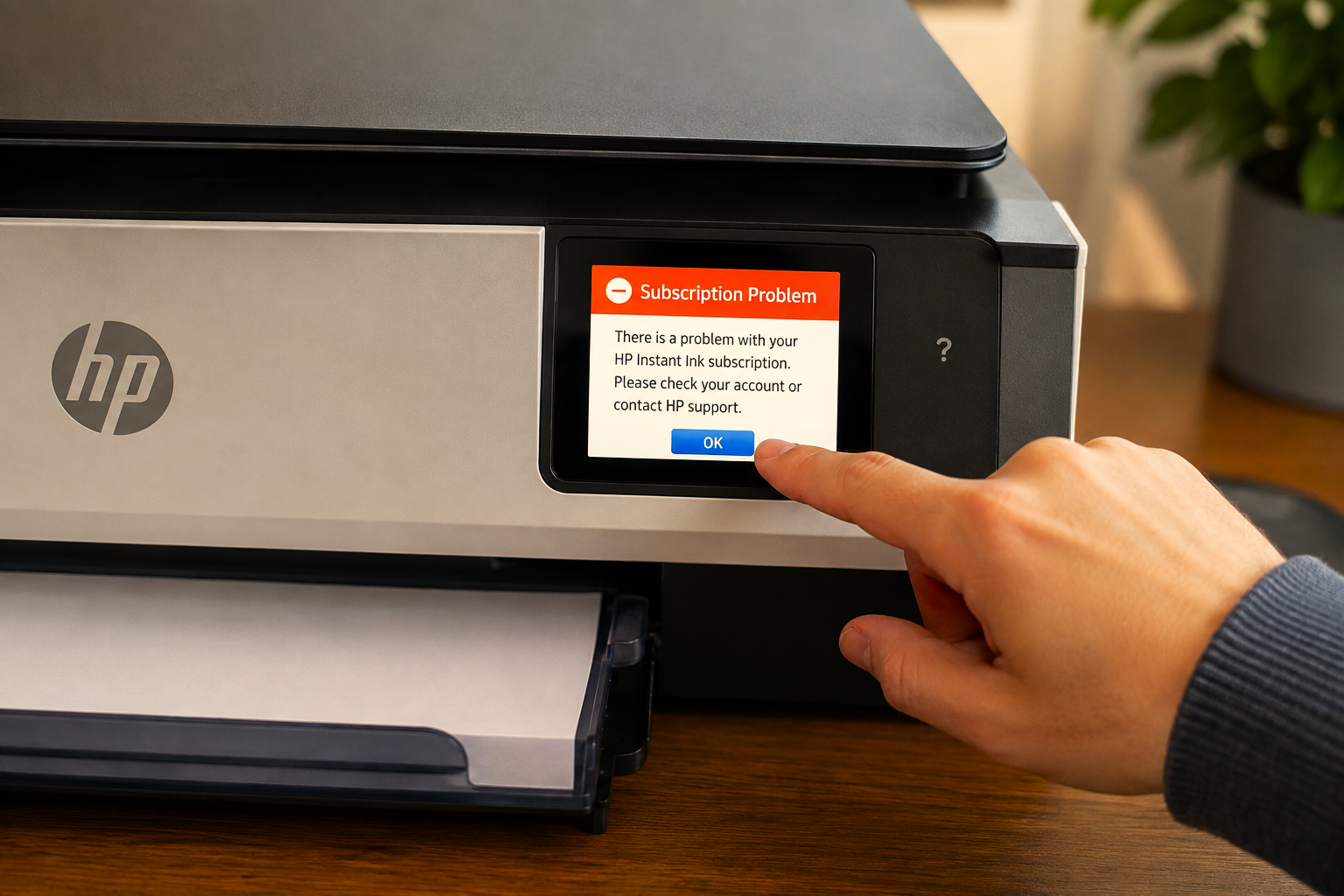
If payment is not resolved within the grace window, the subscription is suspended. At this point, your Instant Ink cartridges may be deactivated and printing stops.
The grace period is your window to act. If you update your payment details before the grace period ends, the subscription can often be restored without any printing interruption at all.
How to Fix an HP Instant Ink Payment Failure
In most cases, an HP Instant Ink payment failed issue can be resolved simply by updating your billing details and letting the account sync. Here’s how to work through it step by step:
- Log in to your HP Instant Ink account. Go to hpinstantink.com and sign in with the email address associated with your subscription. Check the account dashboard for any billing alerts or status flags.
- Go to the billing or payment section. Look for an option labelled “Payment Method,” “Billing Info,” or similar. This is where you’ll see which card or payment method is currently on file.
- Update or re-enter your payment details. If your card has expired, add the new card. If you think the card is still valid, try removing and re-adding it. Make sure the billing address matches exactly what’s on file with your bank.
- Check for a manual payment option. In some cases, the account dashboard will show an option to pay the outstanding balance manually. Using this can speed up reactivation rather than waiting for the next automatic retry.
- Restart your printer after updating. Once payment is confirmed, power off your printer, wait 60 seconds, and power it back on. This forces a fresh sync with HP’s servers and should update the subscription status on the device.
- Allow 5–10 minutes for the sync to complete. Keep the printer connected to the internet and give it a few minutes before running a test print. In many cases, printing access is restored as soon as the sync completes successfully.
Try disconnecting the printer from Wi-Fi and reconnecting it, then allow it to sync again. In some cases a fresh network connection resolves a status mismatch between the printer and the account.
What to Check on Your Payment Method
Before updating your billing details after an HP Instant Ink payment failed alert, it’s worth going through a quick checklist to catch the most likely cause:
- Card expiry date — Has your card been renewed since you first set up Instant Ink? The new card usually has a different expiry date and sometimes a new card number.
- Billing address — Even a minor difference (abbreviating “Street” as “St”) can sometimes cause a verification failure. Match it exactly to what your bank has on file.
- Available balance — If the billing date fell on a low-balance day, the charge may have been declined. Confirm there are funds available before the next retry.
- Bank or card security flags — Log in to your bank account or call your bank to check whether the HP Instant Ink charge was flagged or blocked. Banks sometimes do this without notifying you.
- PayPal or virtual cards — If you’re paying through PayPal, check that the underlying bank or card linked to your PayPal is active and funded.
Common HP Instant Ink Payment Failed Situations
This is more common than you might expect. Check your spam or promotions folder — HP billing notifications can sometimes land there. It’s also worth logging directly into your Instant Ink account to check the status, since the account dashboard will show any billing issues regardless of whether the email was received.
After updating your payment details, the printer needs time to sync with HP’s servers. Power the printer off, wait a minute, then power it back on with the internet connected. In most cases this resolves the issue within a few minutes. If it doesn’t, give it 15–20 minutes for the account status to propagate to the device.
In some cases, a delayed retry charge may appear close to your next regular billing date, making it look like a double charge. One thing to check is your billing history in the account dashboard — it will show exactly what was charged and when. If both charges are showing as successful and you believe one is an error, the account dashboard is the best place to review the details.
Yes, in most cases you can re-subscribe to HP Instant Ink after a cancellation caused by payment failure. When you rejoin, HP may send replacement cartridges. Your old Instant Ink cartridges may or may not reactivate — allow the printer to sync after rejoining before assuming they won’t work, but be prepared to use new ones.
If Your Subscription Was Suspended and You Don’t Want to Re-Subscribe
If you’ve decided not to continue with HP Instant Ink after an HP Instant Ink payment failed situation ends your subscription, your Instant Ink cartridges will no longer work once the account closes. The practical step forward is to switch to retail ink cartridges that are compatible with your printer model.
These are available from most electronics retailers and office supply stores. They function independently of any subscription — no monthly fee, no page limits, and no risk of deactivation tied to billing. Check your printer model number (usually on the front or underside of the printer) and look up the corresponding retail cartridge numbers before purchasing.
If your main concern was the cost of ink, it may be worth comparing your typical monthly print volume against the retail cartridge cost before deciding. For lower-volume printing, retail cartridges often work out better. For higher-volume use, a subscription model may still be more economical.
Frequently Asked Questions
Common questions about HP Instant Ink payment failures
HP Instant Ink typically provides a short grace period after a payment failure before suspending the subscription. In many cases this is a few days, though the exact length can vary depending on your plan and billing cycle. The safest approach is to resolve the payment issue as soon as you’re notified — acting within the grace window is usually enough to avoid any printing interruption.
In many cases, yes. HP may retry the charge automatically during the grace period. However, it’s not advisable to wait and hope the retry succeeds — if the reason for the original failure hasn’t been addressed (an expired card, insufficient funds, etc.), the retry is likely to fail as well. Updating your payment details proactively gives the best chance of a successful resolution.
In most cases, printing continues during the grace period that follows a payment failure. Once that period ends and the subscription is suspended, Instant Ink cartridges are typically deactivated. If you need to print immediately and your cartridges are no longer working, switching to standard retail cartridges for your printer model is the most reliable alternative.
HP Instant Ink typically accepts major credit and debit cards, as well as PayPal in many regions. The accepted options may vary depending on your country. If you’re experiencing issues with one payment method, switching to an alternative method through your account dashboard is worth trying. Prepaid cards are sometimes not accepted by subscription billing systems, so if you’re using one, this could be a contributing factor.
In many cases, yes. Once the payment is resolved and your subscription is reactivated, your printer will sync with HP’s servers and the Instant Ink cartridges should be re-enabled. Restarting the printer after payment is confirmed helps speed this up. If the cartridges still don’t respond after a sync, try removing and reinstalling them to prompt a fresh recognition check.