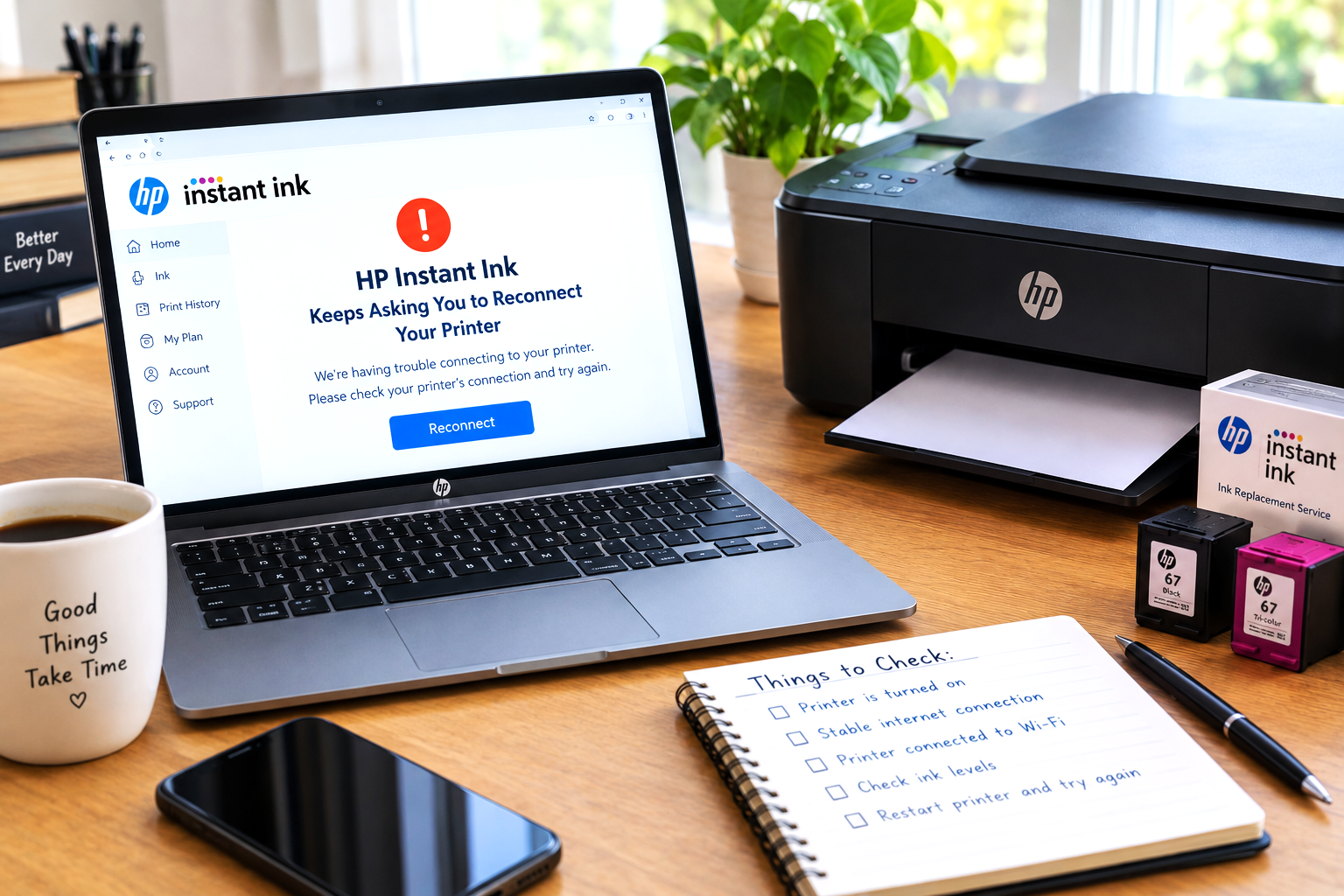
If HP Instant Ink keeps asking you to reconnect your printer to the internet — and the message reappears even after you’ve already connected — the issue is usually not as simple as a disconnected Wi-Fi cable. It’s typically a sign that the printer can connect to the network but can’t successfully reach HP’s subscription servers, which is a different problem with a different set of fixes.
The “reconnect your printer to the internet” message from HP Instant Ink typically appears when the printer can’t communicate with HP’s cloud servers — even if it’s already connected to Wi-Fi. This is often caused by an unstable network connection, a router configuration issue, a firewall or DNS setting blocking HP’s servers, or a Web Services sync problem. In many cases, restarting the printer and router together and allowing a fresh sync resolves the loop.
The “please reconnect your printer to the internet” message from HP Instant Ink is one of the more frustrating loops users encounter — because the printer often appears connected. The Wi-Fi indicator is lit, other devices on the same network are working fine, and yet the message keeps returning. This leads many users to conclude something is seriously wrong with their printer, when in many cases the issue is far more specific and solvable.
HP Instant Ink requires more than just a Wi-Fi connection. The printer needs to reach HP’s cloud services — specific servers that handle subscription verification and Web Services communication. When something on the network path between the printer and those servers is blocked or unstable, the printer triggers the reconnect message even though its Wi-Fi status looks perfectly normal from the outside.
This guide explains why this specific message keeps appearing, what’s interrupting the connection to HP’s servers, and the exact steps to clear the loop for good. For a wider view of subscription-related issues, our HP Instant Ink support guide covers related error types as well.
What the “Reconnect to Internet” Message Actually Means
This message can appear in slightly different forms depending on the printer model and firmware version. Common variations include:
All of these mean the same thing: the printer attempted to check in with HP’s servers and failed. The key distinction — and the reason this message is so often misunderstood — is that this is not the same as the printer being disconnected from Wi-Fi. The printer can be fully connected to your network and still trigger this message if HP’s servers are unreachable from that connection.
Why HP Instant Ink Needs the Internet to Keep Working
Understanding what the printer is actually trying to do when it connects helps clarify why a regular Wi-Fi connection isn’t always enough to prevent this message.
🔗 How HP Instant Ink Uses Your Internet Connection
If any of these check-ins fail — particularly the subscription verification — the printer surfaces the reconnect message. In many cases, the failure isn’t because the printer is offline, but because something is preventing it from reaching HP’s specific service endpoints on the internet.
What’s Actually Causing the Reconnect Loop?
This message tends to keep reappearing because the underlying cause hasn’t been addressed. Here are the most common reasons HP Instant Ink keeps asking you to reconnect your printer to the internet:
Unstable or Intermittent Wi-Fi Signal
A weak signal that drops and reconnects intermittently can interrupt a check-in mid-process. The printer logs the failed verification and surfaces the reconnect message even though the signal appears connected most of the time.
Router Firewall Blocking HP’s Servers
Some routers block outbound connections to certain external hosts. If a firewall rule or security setting on the router is blocking the printer’s connection to HP’s cloud endpoints, the check-in will consistently fail.
DNS Resolution Failure
The printer uses DNS to find HP’s servers by hostname. If the DNS server assigned by the router can’t resolve HP’s service addresses — due to a misconfigured router or ISP DNS issue — the printer can’t reach the servers it needs, even with a working internet connection.
HP Web Services Sync Error
HP Web Services — the on-printer component that handles cloud communication — can get into a broken state. When this happens, the printer can’t complete the sync that clears the reconnect message, even when all other settings are correct.
2.4 GHz vs 5 GHz Band Conflict
Most HP printers connect on the 2.4 GHz band. If the router is broadcasting both bands under the same network name and the printer switches to the 5 GHz band, the connection may appear active but underperform for the type of sustained cloud communication HP Instant Ink requires.
Guest Network or Network Isolation
Printers connected to a guest network or a network with AP isolation enabled may be blocked from reaching external services correctly. Guest networks frequently restrict the type of outbound traffic that HP Instant Ink’s check-in process depends on.
Network Diagnostic Check Before You Start
Before working through the full fix steps, running through this quick network check can help pinpoint the cause faster — especially if the printer appears connected but the message keeps returning:
| What to Check | How to Check It | Likely Issue If Failed |
|---|---|---|
| Printer’s Wi-Fi signal strength | Printer settings → Wireless → Signal strength or bars shown | Weak signal — move printer closer to router |
| Other devices on same network | Check if phone or laptop browsing works on same Wi-Fi | ISP or router issue — not printer-specific |
| Network type (guest vs. main) | Printer wireless settings → check SSID it’s connected to | Guest network — switch to main network |
| Router firewall or security settings | Router admin panel → firewall or security section | HP servers blocked — rule needs adjusting |
| DNS settings on printer | Printer network settings → TCP/IP → DNS address | Custom DNS issue — try switching to 8.8.8.8 |
| HP Web Services status | Printer settings → HP Web Services → check enabled/connected | Sync error — disable and re-enable Web Services |
How to Fix: HP Instant Ink Keeps Asking to Reconnect to the Internet
Work through these steps in order. The most common causes are resolved within the first four steps — the later steps address less frequent but equally real network-level causes.
- Restart both the printer and the router together. Power off the printer completely. Then unplug the router from the wall and wait 60 seconds. Plug the router back in and wait for it to fully reconnect to the internet — usually 1–2 minutes. Then power the printer back on. This clears any stale connection state on both devices and forces a completely fresh network handshake.
- Confirm the printer is on the correct network. Go to the printer’s wireless settings and check the name of the Wi-Fi network it’s connected to. Make sure it matches your main home or office network — not a guest network, not a neighbor’s network it may have auto-connected to, and not a different band with a similar name.
- Move the printer closer to the router temporarily. If the printer is far from the router or separated by walls, try moving it within direct line of sight of the router for testing. A weak or intermittent signal is one of the most common causes of recurring reconnect messages. If the message clears when the printer is closer, signal strength is the issue.
- Disable and re-enable HP Web Services on the printer. On the printer’s touchscreen, go to Settings or the Setup menu and find the HP Web Services option. Disable it, wait 30 seconds, then re-enable it. The printer will reconnect to HP’s servers from scratch and print a confirmation sheet. This resets the Web Services sync and often clears a stuck reconnect loop.
- Change the printer’s DNS to a public DNS server. In the printer’s network settings, find the TCP/IP or DNS configuration. Change the DNS server address to 8.8.8.8 (Google’s public DNS) or 1.1.1.1 (Cloudflare). A router-assigned DNS that can’t resolve HP’s hostnames is a surprisingly common cause of this issue — using a public DNS bypasses that problem entirely.
- Check the router’s firewall and security settings. Log into your router’s admin panel (typically at 192.168.1.1 or 192.168.0.1 in a browser) and look for any firewall, content filtering, or traffic restriction settings. If any rules are blocking outbound HTTPS connections or restricting access to external hosts, try temporarily disabling them to see whether the reconnect message clears.
- Assign the printer a static IP address. IP address conflicts or frequent IP reassignments by the router’s DHCP server can cause intermittent connectivity issues for the printer. In the printer’s network settings, assign it a fixed local IP address outside the router’s DHCP range. This ensures the printer always connects from a consistent address and reduces the chance of network conflicts.
- Disconnect and reconnect to Wi-Fi completely. In the printer’s wireless settings, disconnect from the current network entirely. Then run the wireless setup process again to reconnect as if for the first time. This can resolve cases where the stored network credentials or connection profile on the printer have become corrupted.
- Check and update the printer’s firmware. An outdated firmware version can sometimes prevent HP Web Services from communicating correctly with HP’s servers. Check for available firmware updates through the printer’s settings menu or the HP Smart app and install any that are pending. Firmware updates frequently include fixes for connectivity and Web Services behavior.
When you re-enable HP Web Services, the printer will print a small information sheet confirming the reconnection. This sheet indicates that the Web Services link to HP’s servers has been re-established. After this, give the printer 5–10 minutes to complete a full sync before checking whether the reconnect message has cleared.
Common Situations: Reconnect Message That Keeps Coming Back
A recurring reconnect message that clears and returns is often caused by an intermittent Wi-Fi signal rather than a permanent connection failure. The printer connects long enough to clear the alert, but then loses signal during the next check-in and triggers the message again. Moving the printer closer to the router or adding a Wi-Fi extender between the two devices addresses the root cause rather than just the symptom. A static IP address can also help by removing one variable from the equation.
This is the classic sign that the printer can reach the local network but can’t reach HP’s servers specifically. In many cases, a DNS issue or a router firewall rule is the cause. Changing the printer’s DNS to 8.8.8.8 or 1.1.1.1 is often the fastest fix for this pattern. If DNS isn’t the issue, checking the router’s outbound firewall rules for any restrictions on HTTPS traffic is the next step.
A new router or a new ISP connection can introduce different network settings — a different DNS server, different firewall rules, or a different IP range — that the printer hasn’t been updated to work with. In many cases, simply reconnecting the printer to Wi-Fi on the new router (which re-registers it on the new network) and updating the DNS settings resolves the issue. If the new router has more aggressive security settings than the previous one, temporarily relaxing the outbound filtering rules may also be needed.
Web Services showing as enabled doesn’t always mean the sync is working correctly. The service can be enabled on the printer’s side but still failing to communicate with HP’s servers due to a broken connection state. Disabling Web Services completely, waiting 30–60 seconds, and then re-enabling it forces a clean reconnection rather than just checking the existing one. After re-enabling, the printer prints a confirmation sheet that confirms the server connection — if no sheet prints, the connection is still failing and the network-level steps above should be checked.
If the Message Keeps Returning After Fixes
If the reconnect loop is persisting after working through the standard fix steps, these additional points are worth checking — they’re less common but account for a meaningful portion of persistent cases:
- VPN on the router or network — If your router runs a VPN or any device on the network routes traffic through a VPN, the printer’s outbound requests to HP’s servers may be affected. Try disabling the VPN temporarily to test whether the message clears.
- Parental controls or content filtering — Some routers or ISPs run content filtering that can mistakenly block connections to HP’s cloud service endpoints. Check whether any content filtering service is active on the network and whether HP’s domains are on any block list.
- Dual-band confusion — If the router uses the same SSID for both 2.4 GHz and 5 GHz bands, the printer may be switching between them and losing connection stability. Setting up a separate SSID for the 2.4 GHz band and connecting the printer to that specifically can resolve this.
- Printer IP conflict — If another device on the network has been assigned the same IP address as the printer, connection issues can occur intermittently. Assigning the printer a static IP outside the router’s DHCP range resolves this cleanly.
- Account-side issue masking as connection issue — In some cases, the reconnect message is actually triggered by an account problem — a billing issue or subscription flag — and not a genuine network failure. Log into your HP Instant Ink account at hpinstantink.com and confirm the subscription shows as active with no billing alerts before continuing network-focused troubleshooting.
Before spending significant time on network fixes, it’s worth a quick login to your HP Instant Ink account dashboard. If the account shows a billing alert or subscription issue, resolving that first may clear the reconnect message without any network changes at all — in many cases the two problems look identical from the printer screen.
If the Reconnect Issue Cannot Be Resolved on Your Network
In some situations — particularly with business networks, managed routers, or ISP-provided equipment with limited settings access — it may not be possible to make the network changes needed to allow the printer’s connection to HP’s servers. If that’s the case and the reconnect loop can’t be cleared through the standard steps, there are a couple of practical paths forward.
The first option is to print using retail cartridges instead of Instant Ink cartridges. Retail cartridges don’t require the printer to communicate with HP’s servers and work independently of any subscription or internet connection. They won’t count against your Instant Ink plan, but they allow printing to continue while the connection issue is worked through separately.
The second option is to check whether the network can be configured from a different access point — for example, connecting the printer to a mobile hotspot temporarily to confirm it can reach HP’s servers on a different network. If the reconnect message clears on a hotspot but not on the home network, the issue is definitively with the home network’s configuration, which narrows down the fix considerably.
Frequently Asked Questions
Common questions about the HP Instant Ink reconnect to internet message
Being connected to Wi-Fi is not the same as being able to reach HP’s cloud servers. HP Instant Ink requires the printer to communicate with specific external servers for subscription verification and page count reporting. If anything on the network path — a router firewall, a DNS issue, an unstable signal, or a blocked port — prevents that communication, the reconnect message appears even with a visible Wi-Fi connection. The fix typically involves addressing the network-level obstruction rather than just reconnecting to Wi-Fi.
HP Instant Ink printers check in with HP’s servers periodically — typically on a regular schedule as well as whenever a print job is initiated. The frequency can vary, but in general the printer needs to successfully reach HP’s servers at least once every several days to maintain uninterrupted printing access. If the printer is consistently offline or blocked from HP’s servers for an extended period, the subscription verification will eventually fail and printing may be suspended.
In most cases, no — not on an ongoing basis. HP Instant Ink is a cloud-connected subscription service, and the printer requires periodic internet access to verify the subscription, report page usage, and receive cartridge authorization updates. A brief disconnection may not immediately affect printing, but the subscription system will eventually flag the printer as unreachable and suspend printing access. If reliable internet access isn’t available for the printer, standard retail cartridges are typically a more suitable option.
In most cases, no. Disabling and re-enabling HP Web Services on the printer resets the local communication layer between the printer and HP’s servers — it doesn’t remove the printer from your account or affect your subscription plan. After re-enabling, the printer re-registers with HP’s servers and the enrollment link is re-established. The confirmation sheet that prints after re-enabling Web Services confirms this reconnection has completed successfully.
Using a public DNS server — such as Google’s 8.8.8.8 or Cloudflare’s 1.1.1.1 — is often more reliable than the default DNS assigned by a home router or ISP. These public servers have broad hostname coverage and are less likely to have resolution issues with HP’s service endpoints. The DNS setting can typically be changed in the printer’s network or TCP/IP settings menu. If the reconnect message clears after switching to a public DNS, the original DNS server was the cause of the connection failure.