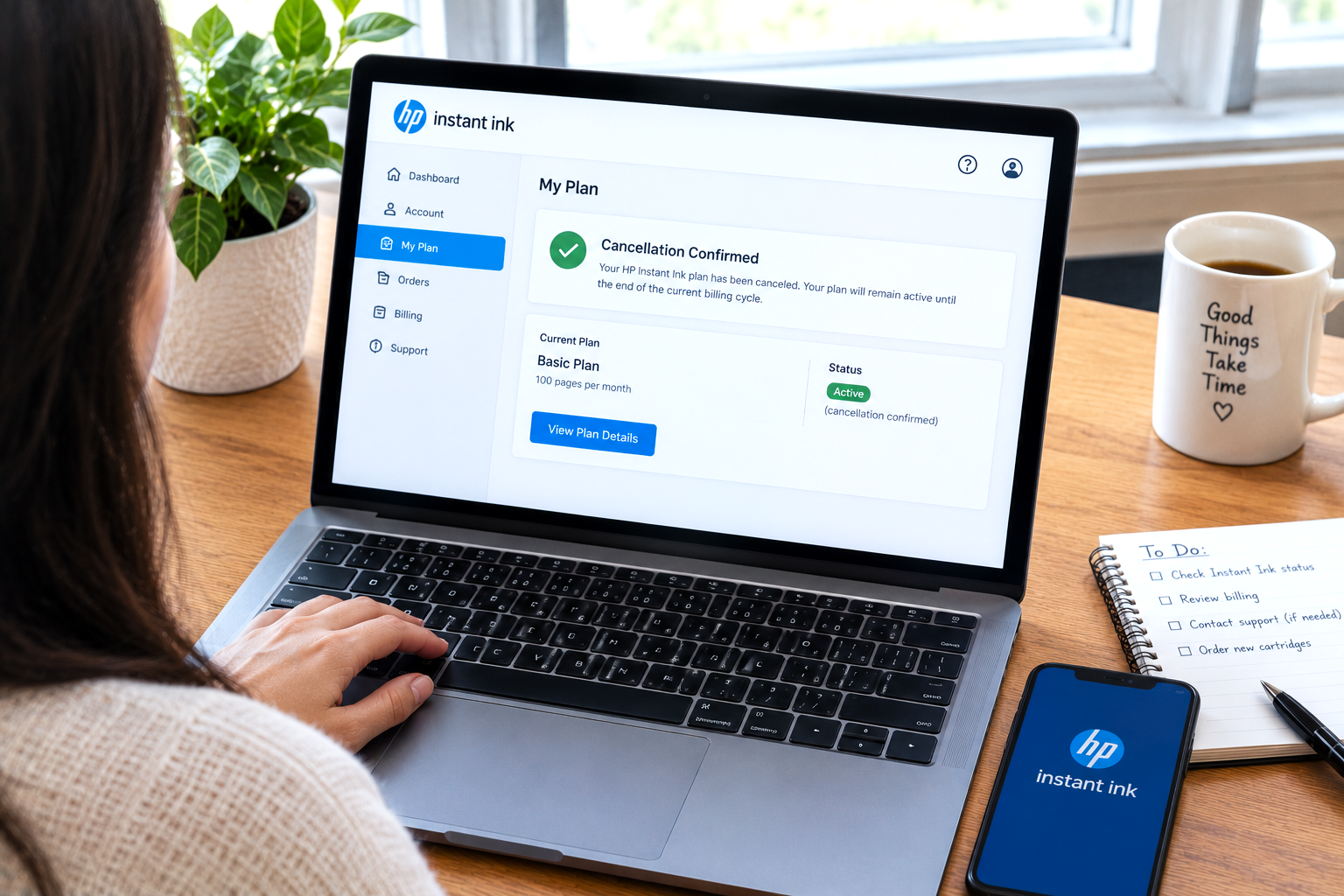
You cancelled HP Instant Ink, got a confirmation email, and assumed that was the end of it — but the account dashboard still shows the plan as active. It’s a confusing situation, especially when you’re not sure whether the cancellation actually went through or whether another charge is on its way.
In most cases, a plan showing as “active” after cancellation is normal. HP Instant Ink keeps the plan running until the end of the current billing cycle before the status changes to cancelled or expired. If a confirmation email was received and no new charge appears after the billing date, the cancellation is typically complete — the dashboard just hasn’t reflected the final status change yet.
This is one of those situations where the system is actually doing what it’s supposed to — it just doesn’t explain itself very well. When you cancel an HP Instant Ink subscription, the cancellation is scheduled for the end of your current billing period rather than taking effect instantly. During that remaining time, your plan stays active, your cartridges continue to work, and the account dashboard continues to show the plan as active. That’s by design.
The problem is that the dashboard doesn’t always make this clear. There’s no prominent “cancellation scheduled — ends on [date]” message, which leaves many people questioning whether the cancellation request actually registered or whether they need to go through the process again.
This guide explains exactly what the HP Instant Ink cancellation confirmation means, what the account status should look like at different stages, and the specific things to check if the status still hasn’t changed after the billing date has passed. For related account questions, our HP Instant Ink support guide covers the most common issues across billing and account management.
How HP Instant Ink Cancellation Actually Works
Understanding the timeline of a cancellation helps make sense of why the dashboard still shows an active plan after you’ve gone through the process. HP Instant Ink cancellations don’t take effect immediately — they follow a specific sequence.
You submit the cancellation request
You go through the cancellation process in the HP Instant Ink account dashboard, confirm the cancellation when prompted, and receive a confirmation email. The cancellation is registered in the system at this point.
Plan stays active — this is normal
The account dashboard continues to show the plan as active. Your enrolled printer can still print, cartridges are still recognised, and HP’s system continues treating you as an active subscriber. This isn’t an error — it’s how the service is designed to work through the end of the paid period.
Full printing access continues
Throughout the remaining period, everything functions normally. Any HP Instant Ink cartridges already in the printer continue working. If a shipment was already in progress when you cancelled, that ink may still arrive — in many cases it will, but cartridges received after cancellation will stop working once the plan ends.
Plan ends — no new charge
No payment is collected for the next billing cycle. The account status should update to show the subscription as cancelled or expired. HP Instant Ink cartridges in the printer will stop working at this point, since they’re tied to an active subscription.
Account becomes inactive
The account remains accessible for reviewing billing history, but the subscription is fully closed. If you want to print again, you’ll need to either re-enrol in HP Instant Ink or switch to standard retail cartridges.
The cancellation confirmation email from HP is the most reliable indicator that the request went through. Keep this email — it has a timestamp showing when the cancellation was submitted, which is useful if any billing questions come up later.
Normal Delay vs. Actual Problem — How to Tell the Difference
The key question is whether the “active” status on your dashboard is expected — because the billing date hasn’t passed yet — or whether something has genuinely not updated as it should. Here’s how to read the situation:
- You received a cancellation confirmation email from HP
- The billing date shown in the account hasn’t passed yet
- No new charge has appeared on your payment method
- The printer still works (it should until the period ends)
- Account shows the plan but doesn’t show a renewal date
- Your billing date passed more than a few days ago
- A new charge appeared after you cancelled
- No confirmation email was received after cancelling
- The account still shows a future renewal date
- You were billed without any cancellation confirmation
Reasons the HP Instant Ink Cancellation Status May Not Update
If the billing date has passed and the plan still shows as active, a few things could be behind it:
Dashboard Refresh Delay
Account status changes don’t always appear in the dashboard the moment they happen. In some cases, the cancellation registers on the backend but the dashboard still reflects the previous state for 24–48 hours after the billing cycle ends. A page reload or logging out and back in sometimes resolves this.
Cancellation Didn’t Complete Fully
The cancellation flow in HP’s account portal has a confirmation step that’s easy to miss — it looks like a summary page rather than a final button. If the last step wasn’t completed, the cancellation may not have been submitted at all, despite the flow appearing to have progressed.
Auto-Renewal Re-Triggered
In some cases, a payment retry or update to the payment method around the billing date can re-activate a plan that was in a cancelled-pending state. This is uncommon, but it can happen if a card was updated close to when the cancellation was submitted.
Confirmation Email Never Arrived
If the cancellation confirmation went into spam or to an outdated email address, you may not have it — which also means you can’t be certain the cancellation registered. In this situation it’s worth logging into the account to check rather than assuming the process completed.
Session Timeout During Cancellation
If the browser session timed out mid-way through the cancellation flow, or a connection dropped at the point of submission, the request may not have reached HP’s servers. This can feel like a completed cancellation from the user’s side even though nothing was submitted.
Pending Payment Holding the Account Open
If there was an outstanding failed payment on the account at the time of cancellation, the account may stay in an unusual state while the payment issue is outstanding. Cancellation and billing status can interact in ways that delay the final closure of the plan.
How to Verify Your HP Instant Ink Cancellation Went Through
If you’re not certain whether the cancellation actually registered, these steps let you check properly before doing anything else:
- Check your email for the cancellation confirmation. Search your inbox — including spam and promotions — for an email from HP confirming the cancellation. The subject line typically includes words like “cancellation confirmed,” “subscription cancelled,” or similar. If you find it, note the date and time it was sent. That’s your evidence the request went through on HP’s side.
-
Log into your HP Instant Ink account and check the plan status carefully. Go to
hpinstantink.comand sign in. Navigate to the subscription or plan section. Look at the status — does it say “Active” with a future renewal date, or does it say something like “Active until [date]” or “Cancellation pending”? The wording matters here. A future renewal date suggests the cancellation may not have registered. - Check billing history for any charge after your cancellation date. In the account, look at your billing history or payment history section. If the most recent charge predates your cancellation and no new charge appears after it, that’s a reasonable signal the cancellation is in effect and the billing cycle simply hasn’t closed yet.
- Compare the billing date with today’s date. If your next billing date shown in the account is still in the future, the plan showing as active is expected. Wait until after that date and then re-check — the status should update to reflect the closure. If the billing date has already passed and the plan still shows active with a new future date, that’s the scenario worth investigating further.
- Log out fully and log back in to refresh the account state. Dashboard displays are sometimes cached. Logging out completely, clearing your browser cache, and logging back in forces a fresh fetch of your account data and can reveal a status update that wasn’t showing in the previous session.
- If no confirmation email exists and the status looks wrong, go through the cancellation process again. If you can find no confirmation email and the account still shows a standard active plan with a future renewal date, it’s likely the initial cancellation attempt didn’t complete. Re-entering the cancellation flow and completing each step carefully — including the final confirmation button — is the safest course.
HP Instant Ink cartridges are tied to an active subscription and stop working when the plan closes. This is expected behaviour and is part of how the subscription model works. Switching to standard retail ink cartridges after cancellation is the normal path forward for continued printing.
Common Situations After HP Instant Ink Cancellation
In most cases, yes. If you received a cancellation confirmation email and the billing date shown in your account is still in the future, the plan will continue to show as active until that date passes. This is the standard behaviour — the subscription runs through the end of the paid period. Check back after the billing date and the status should reflect the change. If it doesn’t update within a day or two after that date, the steps above will help you confirm what happened.
This is worth investigating more carefully. Start by checking whether the charge on your bank or card statement matches HP Instant Ink, and then look at your account billing history to see how it’s recorded there. If the cancellation confirmation email exists and a charge still went through after the cancellation date, reviewing the account dashboard for any indication of what happened — including whether a payment update may have re-triggered the subscription — is the right first step. The account billing history section often gives more detail about what triggered a specific charge.
Log into your HP Instant Ink account and look at the plan status section carefully. If it shows “Active” with a future renewal date and no indication of a pending cancellation, it’s likely the request didn’t complete. This can happen when the session timed out, the final confirmation step wasn’t clicked, or the page didn’t fully load at submission. In this situation, going through the cancellation process again — and watching for the confirmation step specifically — is the recommended approach.
There can be a short lag between the account status changing and the printer’s connection to the HP cloud catching up. The printer’s enrolled status is updated the next time it connects to HP’s servers, which typically happens automatically. If printing has stopped and the account genuinely shows as cancelled, the printer’s enrolled status should update on the next internet check-in. If printing is still working normally after the account shows cancelled, it may still be within the active period before the plan formally closes.
Don’t delete the cancellation confirmation email until you’ve confirmed that no new charge appeared after the billing date. It’s a straightforward way to have a record of when the cancellation was submitted if any billing question comes up later.
If the Plan Is Still Active Well Past the Expected End Date
If several billing cycles have passed since cancellation, a new charge appeared after the cancellation confirmation, or the account consistently shows an active renewal date you weren’t expecting, it’s reasonable to look more closely at what’s happening on the account. Checking the full billing history in the account dashboard is usually the clearest starting point — it tends to show exactly what charges occurred and when, which makes it easier to identify whether a specific billing event re-activated the plan.
Documenting the situation clearly before contacting HP’s support — noting the cancellation confirmation email date, the charge dates, and what the dashboard is currently showing — makes any follow-up conversation more straightforward. HP’s official support channels are the appropriate route for resolving any billing dispute that can’t be explained by the account history alone.
For other common subscription questions, our HP Instant Ink support guide covers related billing and account topics that come up alongside cancellation.
Frequently Asked Questions
Common questions about HP Instant Ink cancellation confirmation and plan status
HP Instant Ink runs the cancellation through to the end of the current billing period rather than cutting access immediately. During that time the plan continues to show as active in the dashboard, your printer still works, and your cartridges are still recognised. The status will change once the billing period closes and no new payment is collected. This is the expected behaviour for a cancellation that’s been submitted correctly.
The account status typically updates around the time the current billing period ends — which is the next billing date after the cancellation was submitted. After that date passes, the dashboard should reflect the cancellation within a day or two. If it hasn’t updated after 48–72 hours past the billing date, logging out and back in, or checking from a different browser, can sometimes surface the correct status sooner.
Yes, but only until the billing period ends. Because the cancellation takes effect at the end of the paid cycle rather than immediately, the printer continues to work normally until that date arrives. After the plan closes, HP Instant Ink cartridges stop being recognised by the printer. To continue printing after that point, standard retail ink cartridges purchased separately are needed — HP Instant Ink cartridges won’t work without an active subscription.
Immediately after cancellation, the account may still show the plan as “Active” — this is normal if the billing date hasn’t passed. What you should not see is a new future renewal date that suggests the subscription will continue billing. Once the current period ends, the status typically changes to something like “Cancelled,” “Expired,” or “Inactive.” If the account continues to show a renewal date well after the billing period was supposed to end, it’s worth going back through the verification steps to confirm whether the cancellation registered.
HP Instant Ink’s standard approach is that the current billing period runs through to completion rather than being refunded. Cancellation takes effect at the end of that period — so you keep printing access for the time you’ve already paid for, but the payment for that period is generally not reversed. For specifics about refund eligibility in unusual circumstances, HP’s official support is the right point of contact, as individual account situations can vary.