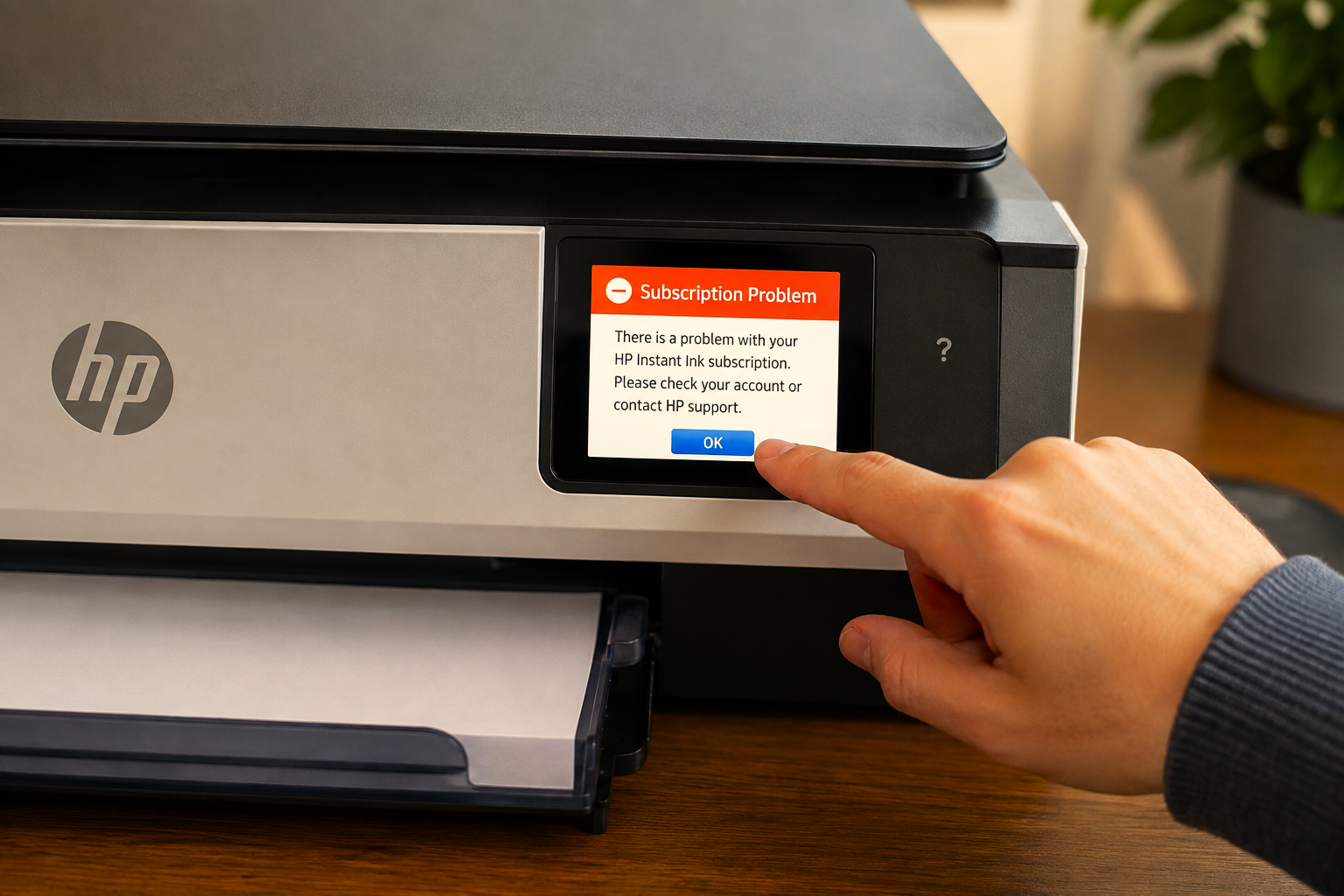
Seeing a “Subscription Problem” message on your HP printer screen can be alarming — but in most cases it’s a communication or account issue, not a sign that your printer or cartridges are broken. Understanding what this message actually means is the first step to clearing it quickly.
The HP Instant Ink “Subscription Problem” message typically appears when the printer can’t verify an active subscription — usually due to a lost internet connection, a billing issue on the account, or the printer being out of sync with HP’s servers. In many cases, reconnecting to the internet and restarting the printer is enough to resolve it.
The HP Instant Ink “Subscription Problem” message is one of the more confusing errors the system can display — because it doesn’t tell you specifically what’s wrong. It appears on the printer’s touchscreen or control panel and typically blocks printing until the issue behind it is addressed. The message itself is a signal from the printer that it couldn’t confirm a valid, active subscription during its last check-in with HP’s servers.
What makes this error particularly frustrating is that it can appear even when you believe your subscription is active and your payments are up to date. In many cases, the problem is a temporary one — a dropped internet connection, a sync delay, or a brief billing hiccup that the system is still catching up on. In other cases, it points to something that genuinely needs attention on your account.
This guide explains exactly what the HP Instant Ink subscription problem message means, the most common causes behind it, and the clearest steps to get it resolved. For a full overview of subscription-related issues, our HP Instant Ink support guide covers additional error types as well.
What Does the “Subscription Problem” Message Actually Mean?
The message is displayed when the printer attempts to verify your Instant Ink subscription status and the verification fails. HP Instant Ink printers regularly check in with HP’s cloud servers over the internet to confirm that the subscription linked to the device is still active and in good standing. When that check-in can’t be completed successfully — for any reason — the printer surfaces a subscription problem error.
The exact wording of the message can vary slightly depending on your printer model and firmware version. Some common variations include:
All of these point to the same underlying problem — the printer’s subscription verification failed. The table below shows what the different root causes look like and how urgent each one is:
| Root Cause | Urgency | What It Means |
|---|---|---|
| No internet connection | Low | Printer can’t reach HP servers — reconnecting usually clears it |
| Failed payment / billing issue | High | Subscription suspended — needs payment resolution to restore printing |
| Subscription cancelled or expired | High | Instant Ink cartridges are deactivated — retail cartridges needed |
| Temporary server sync delay | Low | Usually self-resolving — restart printer and wait a few minutes |
| Plan change processing | Medium | Short-lived during plan transitions — sync usually restores access |
| Printer not properly enrolled | Medium | Device not linked to account — enrollment or re-enrollment needed |
What Causes the HP Instant Ink Subscription Problem Error?
The HP Instant Ink subscription problem message can be triggered by several different situations. Here are the most common causes users encounter:
Internet Connection Lost or Unstable
The printer checks its subscription status online. If the Wi-Fi dropped or was unstable at the time of the check, the verification fails and the error appears even if the subscription is fully active.
Failed or Outstanding Payment
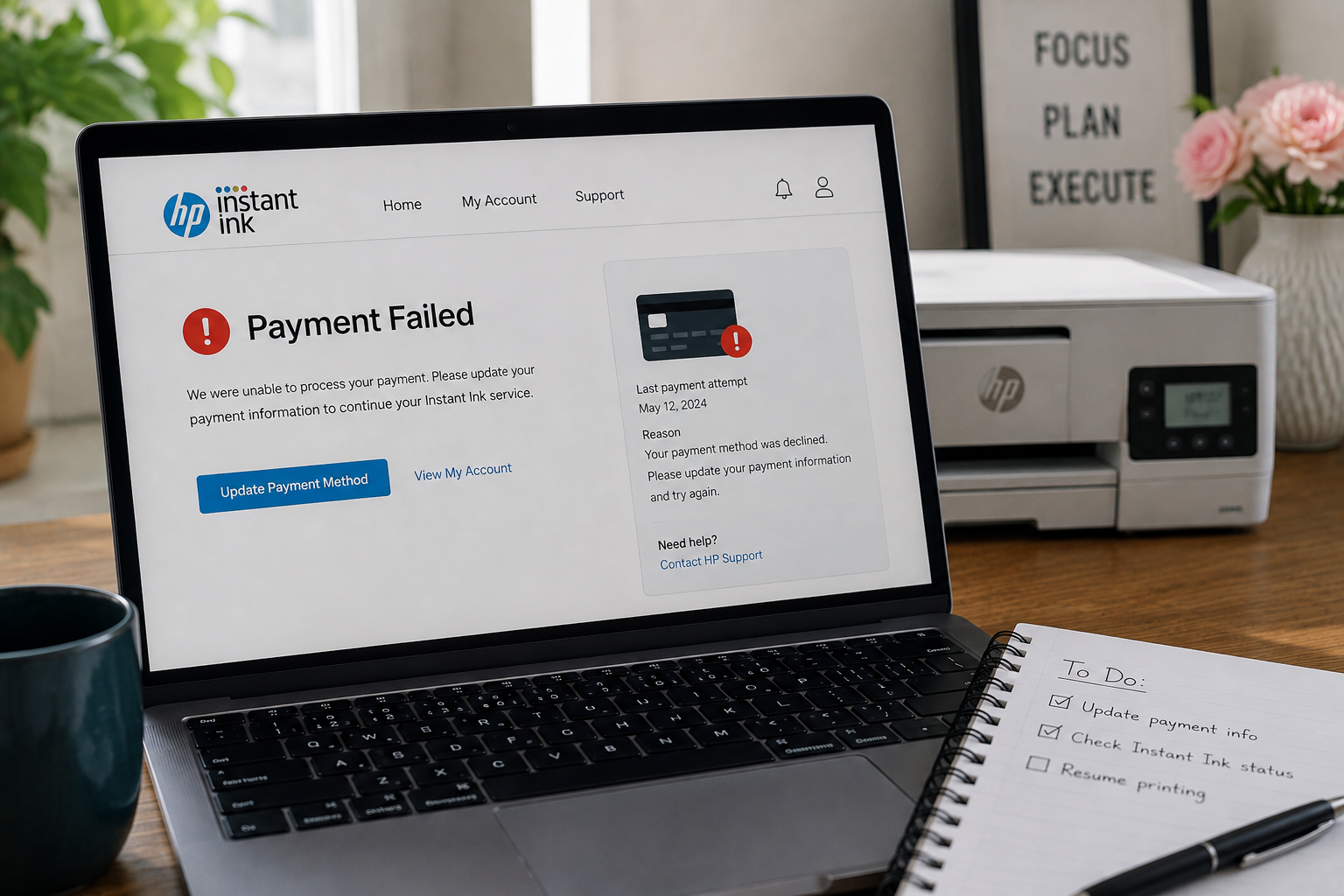
A declined payment puts the account in a suspended state. The printer picks this up during its next server check-in and displays the subscription problem message to indicate printing access has been affected.
Plan Change Still Processing
Upgrading or downgrading an Instant Ink plan can occasionally cause a brief period where the system is reconfiguring the account. During this window, the printer may surface the error temporarily.
Account Sync Delay
In some cases, a change made to the account — updating payment details, rejoining after a pause — takes time to reach the printer. The device still shows the old status until the sync completes.
Subscription Cancelled or Ended
If the subscription was cancelled — whether intentionally or due to unresolved billing — the printer will display a subscription problem message once it can no longer verify an active plan.
Printer Not Linked to Account
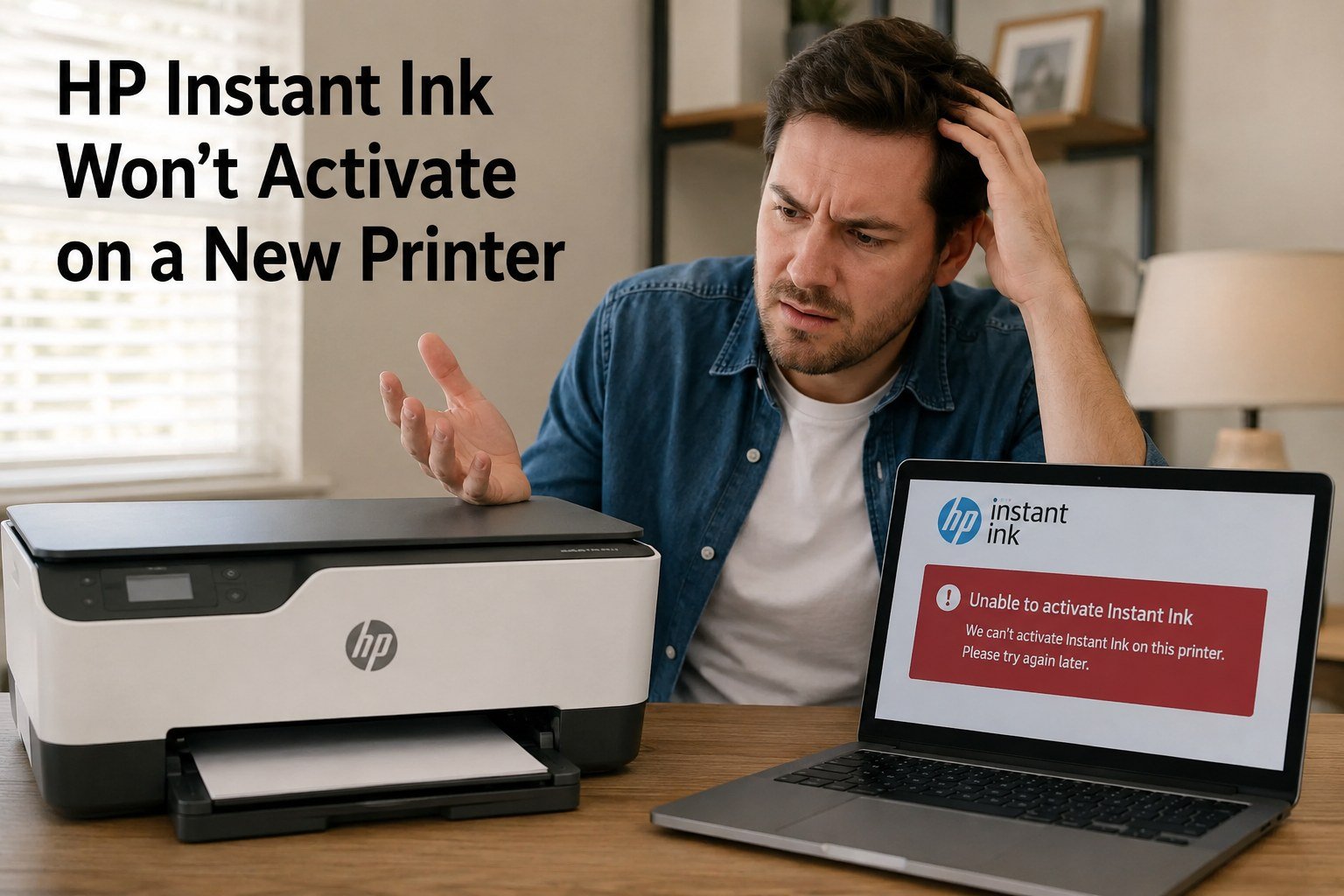
A printer that was reset, replaced, or never fully enrolled may fail subscription verification because it isn’t properly associated with an active Instant Ink account.
How to Fix the HP Instant Ink Subscription Problem Message
Work through the steps below in order. Most HP Instant Ink subscription problem errors are resolved within the first three steps — the later steps cover less common causes.
- Check the printer’s internet connection first. Go to your printer’s wireless settings and confirm it is connected to Wi-Fi. If it shows as disconnected or connected with a weak signal, reconnect it to your network before doing anything else. A lost connection is the most frequent cause of this error and the easiest to fix.
- Restart the printer. Power the printer off completely, wait 60 seconds, then power it back on. Once it restarts and reconnects to the internet, give it 3–5 minutes to sync with HP’s servers. In many cases, this alone clears the subscription problem message if the cause was a temporary connection drop or sync delay.
- Log in to your HP Instant Ink account. Visit hpinstantink.com and check the status of your subscription. Look for any alerts, billing flags, or status messages on the dashboard. This will tell you whether the issue is on the account side or just a printer-side sync problem.
- Check for a payment issue. If your dashboard shows a failed payment or billing alert, resolve it by updating your payment method or clearing the outstanding balance. Once the payment issue is fixed, restart your printer and allow it to sync again.
- Check whether your plan is still active. If the subscription shows as cancelled, paused, or expired, the subscription problem message will remain until the plan is either reactivated or you switch to retail cartridges. If you want to continue with Instant Ink, reactivating the plan through your account dashboard is the path forward.
- Restart the router as well. If the printer shows as connected to Wi-Fi but the message persists, the issue may be with the router’s connection to the internet rather than the printer itself. Restarting the router and allowing the printer to reconnect often helps when simple printer restarts haven’t worked.
- Remove and reinstall the ink cartridges. With the printer powered on, open the cartridge access door, remove the Instant Ink cartridges, wait 30 seconds, and reinstall them. This can prompt the printer to run a fresh verification check rather than relying on a cached status.
- Check whether the printer is properly enrolled. If none of the above resolves it, log into your account and confirm that this specific printer is listed as the active enrolled device. If it isn’t, or if it shows a different printer, re-enrolling the current device is the next step.
If the message persists after reconnecting to Wi-Fi and restarting both the printer and router, it’s very likely that the cause is on the account side — a billing issue, a cancelled plan, or an enrollment mismatch. Checking your account dashboard will confirm which one applies.
Quick Diagnostic Checklist Before You Start
Running through this checklist before diving into fix steps can help you pinpoint the cause of the HP Instant Ink subscription problem faster:
- Is the printer connected to Wi-Fi? — Check the wireless indicator light or network settings on the printer. If offline, that’s almost certainly the cause.
- Has anything changed on your account recently? — A plan change, a missed payment, or a cancellation in the past few days is a strong indicator the error is account-related.
- Did the error appear after a printer restart or power cut? — If so, it may be a temporary sync issue that clears on its own after the printer reconnects.
- Is the billing date approaching or recently passed? — Payment-related subscription problems often appear around billing dates. Check your account for any payment alerts.
- Was the printer recently reset or replaced? — A factory reset or new device may need to go through re-enrollment before the subscription verifies correctly.
Common HP Instant Ink Subscription Problem Situations
This is one of the most common reports. The most likely cause is that the printer’s scheduled subscription check-in happened while the Wi-Fi was down or the router had restarted overnight. Reconnecting the printer to the internet and restarting it usually resolves this. If it doesn’t, log into your account to check whether a billing attempt occurred overnight and whether it was successful.
This is typically a sync delay. The printer’s local status hasn’t yet caught up with what your account is showing. Restarting the printer with a stable internet connection should trigger a fresh sync. In some cases it can take 10–20 minutes for the updated status to reach the device. Removing and reinstalling the cartridges after the restart can also prompt a faster recheck.
Plan changes can cause a brief period where the account is transitioning between states. During this window, the printer may display a subscription problem message while the system updates. In many cases this clears within a few minutes to a few hours. Restarting the printer after a plan change helps prompt a faster sync with the updated account status.
Once a billing issue is fixed, the printer needs to sync with HP’s servers to pick up the updated account status. Restart the printer after resolving the payment — don’t expect it to update automatically in real time. Give it 5–10 minutes after restarting before concluding the fix didn’t work. If it still hasn’t cleared after that, try a router restart as well to ensure the printer has a fresh connection.
If the Subscription Problem Cannot Be Resolved
If the HP Instant Ink subscription problem message persists and the underlying issue is a cancelled or permanently lapsed subscription, your Instant Ink cartridges will remain deactivated. At that point, the most practical path forward is switching to standard retail ink cartridges that are compatible with your printer model.
Retail cartridges work independently of any subscription — no account verification, no internet check-in, and no risk of deactivation. They’re widely available at electronics retailers and office supply stores. Check your printer’s model number and look up the corresponding retail cartridge series before purchasing.
If you do want to continue with Instant Ink, reactivating your subscription through the account dashboard and then restarting the printer should clear the message — though in some cases HP may need to ship new cartridges to the re-enrolled device.
Frequently Asked Questions
Common questions about the HP Instant Ink subscription problem message
The message appears when the printer can’t successfully verify the subscription — not necessarily when the subscription is actually inactive. In many cases, a lost Wi-Fi connection, a temporary server issue, or a sync delay causes the verification to fail even though the account is in good standing. Reconnecting to the internet and restarting the printer typically resolves this without any account changes needed.
In some cases, yes — particularly if the cause was a temporary connection issue or a brief server sync delay. The printer will attempt another check-in the next time it connects to the internet, and if the verification succeeds at that point, the message will clear. However, if the cause is a billing issue or a cancelled subscription, the message won’t clear on its own until the underlying account issue is addressed.
In most cases, printing is blocked while this message is active. The printer typically won’t allow new print jobs until the subscription status is verified successfully. If you need to print urgently and can’t resolve the message immediately, switching to compatible retail cartridges for your printer model is the most reliable short-term option, as they work without subscription verification.
After resolving the underlying account issue — such as updating a payment method or reactivating a paused plan — the printer needs to sync with HP’s servers to pick up the change. This usually takes a few minutes after restarting the printer. In some cases it can take up to 15–20 minutes. Restarting the printer with a stable internet connection immediately after fixing the account issue gives the fastest result.
Not necessarily. If the cause is a temporary connection issue or a sync delay, the cartridges are not deactivated — the printer simply couldn’t verify them at that moment. Cartridges are typically only permanently deactivated when the subscription has been fully cancelled and the billing period has ended. If your subscription is still active, resolving the connection or account issue should restore cartridge access without needing replacements.