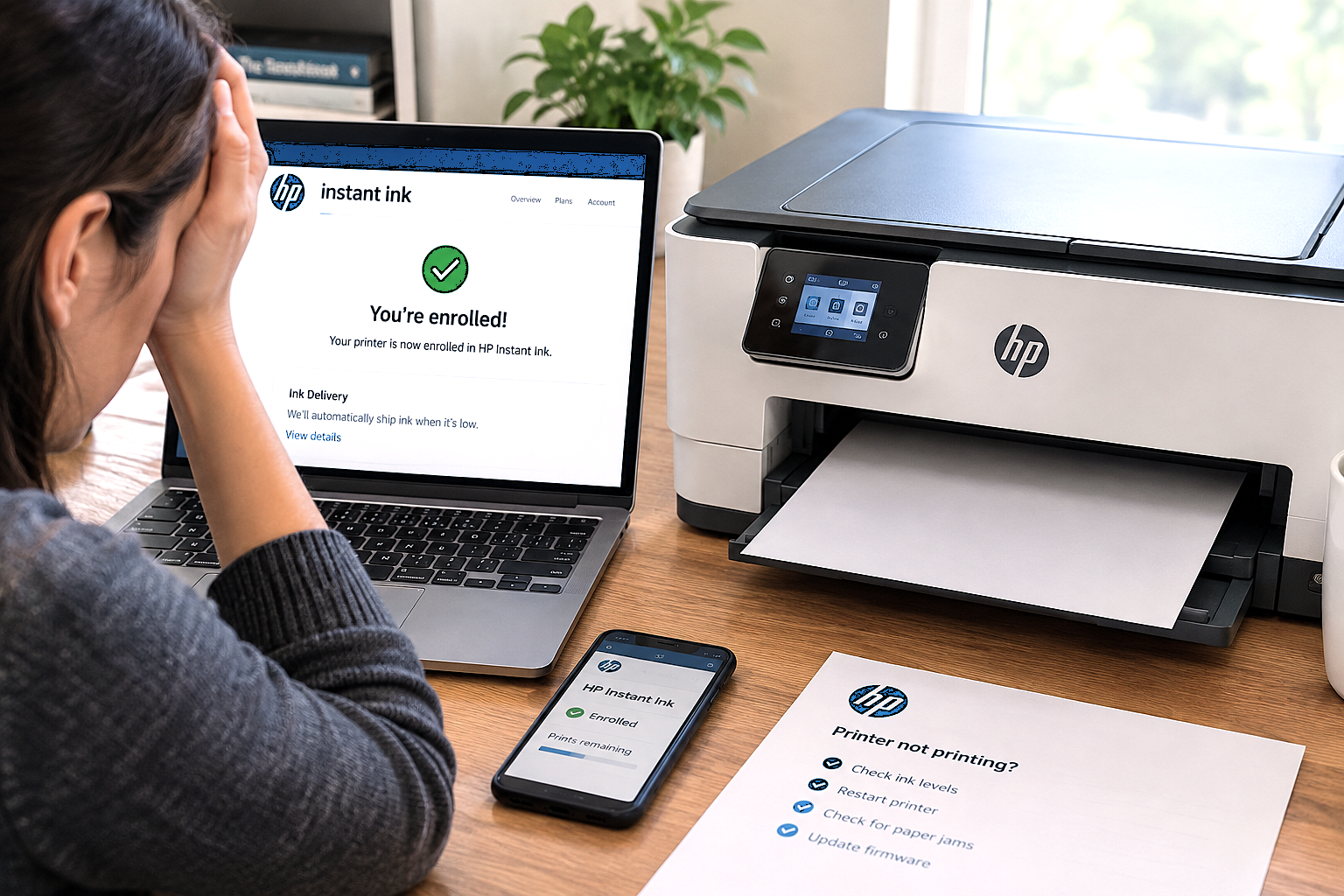
If your printer is enrolled in HP Instant Ink but still not printing, you’re dealing with a gap between enrollment and full activation — and it’s a more common situation than most users expect. Enrollment alone doesn’t always mean the printer is ready to print. There’s a sync step in between that can stall, fail silently, or get missed entirely.
When an HP Instant Ink enrolled printer still won’t print, the most common causes are an incomplete sync between the printer and HP’s servers, Instant Ink cartridges installed before enrollment was confirmed, a lost internet connection during setup, or an account issue such as a pending billing problem. Restarting the printer with a stable internet connection and allowing it to sync is the right first step in most cases.
Completing the HP Instant Ink enrollment process and then finding that the printer still won’t print is a genuinely confusing experience. The account dashboard may show the printer as enrolled, the cartridges may be installed, and yet nothing comes out. The printer might display an error, show the cartridges as unrecognized, or simply refuse to respond to print jobs entirely.
The key thing to understand is that enrollment and activation are not the same step. Enrollment means the printer has been linked to your account in the system. Activation — the point at which the printer verifies that link, recognizes the Instant Ink cartridges, and allows printing — happens through a sync process that occurs over the internet after enrollment. If that sync doesn’t complete cleanly, the printer stays in a kind of limbo where it’s technically enrolled but not yet cleared to print.
This guide walks through the most common reasons the sync fails after enrollment and how to work through each one. For other subscription-related issues, our HP Instant Ink support guide covers additional error types as well.
Quick Diagnostic — What Does the Printer Show?
The message or behavior your printer is displaying is the most useful clue about what’s actually going wrong. Here’s what different printer states typically indicate when the HP Instant Ink enrolled printer still not printing issue occurs:
| What the Printer Shows | Likely Cause | Priority |
|---|---|---|
| Cartridge incompatible or not recognized | Cartridges installed before enrollment completed or sync hasn’t run yet | Medium |
| Subscription Problem | Enrollment didn’t fully register or account has a billing flag | High |
| No error — printer just won’t print | Sync delay or offline status — printer hasn’t received activation signal | Low |
| Printer offline in device settings | Internet connection issue preventing sync with HP’s servers | Medium |
| Wrong cartridge type error | Non-Instant Ink cartridges installed, or retail and Instant Ink mixed | Check |
| Print jobs stuck in queue | Driver or software issue unrelated to subscription — clear queue first | Low |
Why Is the HP Instant Ink Enrolled Printer Still Not Printing?
In most cases, the printer stops short of printing for one of these six reasons — even when enrollment appears to have completed successfully:
Enrollment Sync Not Completed
Enrollment creates the account link, but the printer still needs to sync with HP’s servers to pick it up. If the printer wasn’t online at the time, or the sync was interrupted, the activation signal never arrives.
Cartridges Installed Before Enrollment Confirmed
A very common cause. If Instant Ink cartridges are installed before the printer has finished syncing its enrolled status, the printer may flag them as unauthorized — even if they are the correct cartridges for the plan.
Internet Connection Lost During Setup
If the Wi-Fi dropped at any point during the enrollment or immediately after, the sync process couldn’t complete. The printer may appear enrolled on the account side but hasn’t received the confirmation it needs.
Pending Billing Issue on Account
A failed payment or outstanding billing alert on the account can prevent printing even after a freshly enrolled printer. The system holds printing access until the account is in good standing.
Mixed Cartridge Types
Installing one Instant Ink cartridge and one retail cartridge at the same time can cause a recognition conflict. HP Instant Ink printers typically require all installed cartridges to be of the same type — either all Instant Ink or all retail.
Printer Linked to Wrong HP Account
If the printer was enrolled under a different HP account than the one holding the Instant Ink subscription, the subscription verification will fail. The enrolled printer and the active subscription need to be under the same account.
What the Enrollment to Activation Process Should Look Like
Understanding where the process is supposed to go helps identify exactly where it may have stalled in your situation:
Claim Code Generated on Printer
HP Web Services is enabled on the printer, which prints a page containing a unique claim code.
Claim Code Entered in HP Instant Ink Account
The code is entered in the HP Instant Ink account dashboard to link the printer to the subscription.
Account Confirms Enrollment — Sync Begins
HP’s servers mark the printer as enrolled and send an activation signal. The printer needs to be online to receive this. This is where many setups stall.
Printer Receives Activation Signal
The printer picks up the confirmation from HP’s servers and updates its local subscription status.
Instant Ink Cartridges Authorized
The printer verifies the installed Instant Ink cartridges against the active subscription and clears them for use.
Printing Access Restored
The printer is fully activated and print jobs are processed normally.
If the printer was offline, had a weak Wi-Fi signal, or the cartridges were installed between Steps 2 and 4, the activation signal either wasn’t received or was overridden by a cartridge recognition error. Restarting the printer with a stable connection forces a fresh attempt at Steps 3 and 4.
How to Fix: HP Instant Ink Enrolled but Printer Still Not Printing
Work through these steps in order. Most enrolled printers that still aren’t printing are resolved within the first four steps.
- Confirm the printer is connected to the internet. Go to the printer’s wireless settings and verify it shows a connected status with a working Wi-Fi signal. If it shows disconnected or has a weak signal, reconnect it to your network before going any further. The sync process cannot complete without a reliable internet connection.
- Restart the printer and allow 5–10 minutes to sync. Power the printer off completely, wait 60 seconds, then power it back on. Keep it connected to Wi-Fi and do not touch it for at least 5 minutes. This gives the printer time to reconnect to HP’s servers and pick up the activation signal from your enrollment.
- Log in to your HP Instant Ink account and verify enrollment. Visit hpinstantink.com and confirm that the printer is listed as active and enrolled under your plan. If it shows as pending or not enrolled, the claim code entry may not have completed successfully — re-entering it resolves this.
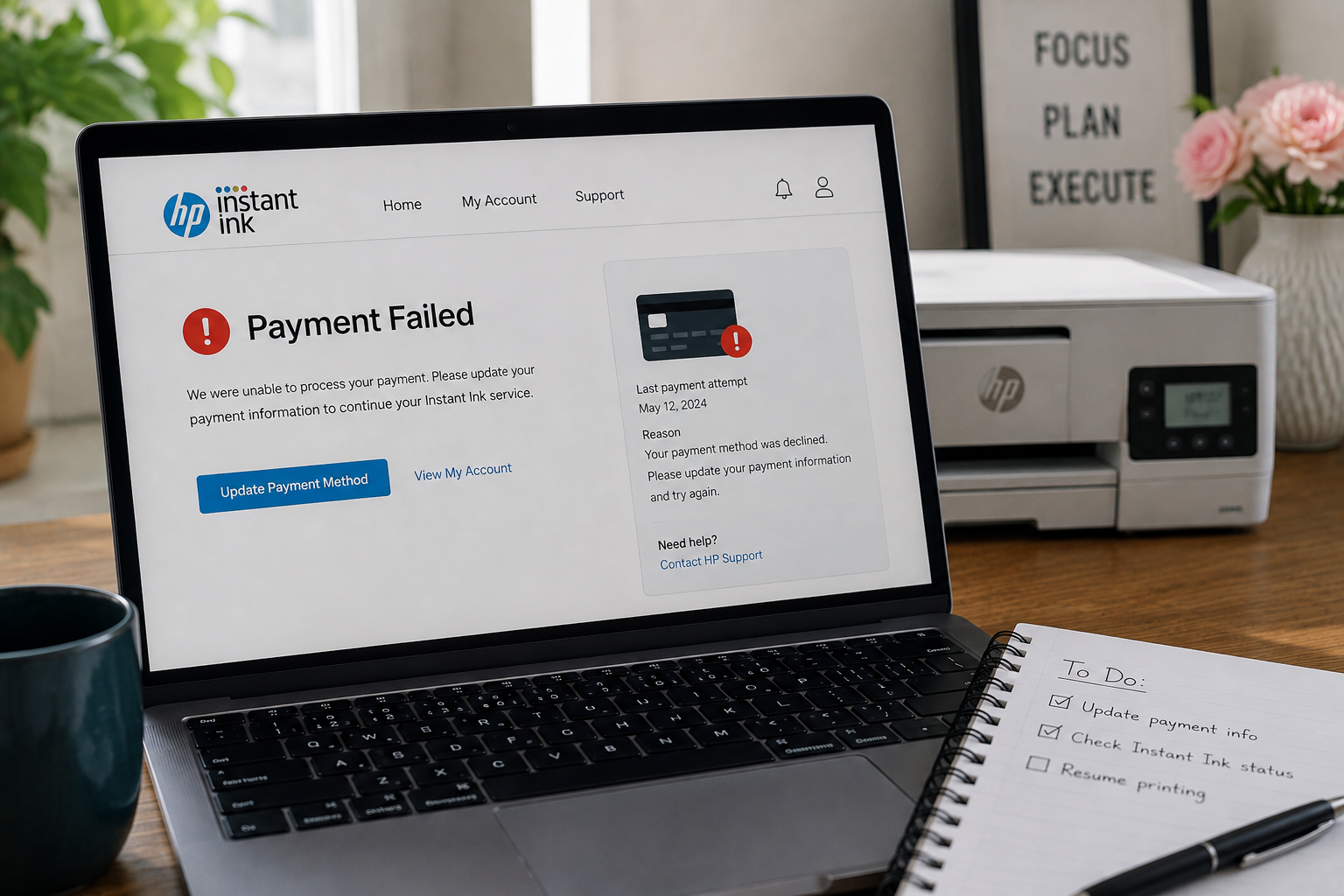
- Check for billing alerts on the account. Look in the billing section for any payment failures, outstanding balances, or account flags. A pending billing issue can block printing even on a freshly enrolled printer. Resolve any billing issues before continuing.
- Remove and reinstall the Instant Ink cartridges. With the printer powered on, open the cartridge access door, remove all cartridges, wait 30 seconds, and reinstall them carefully. This prompts the printer to run a fresh cartridge verification against its current subscription status — which, after the sync, should now be active.
- Check that all installed cartridges are HP Instant Ink cartridges. Look at each cartridge and confirm that all of them carry the Instant Ink label. If any cartridge is a standard retail cartridge, mixing it with an Instant Ink cartridge can cause a recognition conflict. The printer generally needs all cartridges to be of the same type.
- Restart the router as well if syncing still hasn’t worked. Unplug the router, wait 30 seconds, and plug it back in. Once the router has fully restarted, reconnect the printer to Wi-Fi and allow it another 5 minutes to sync. In some cases a router issue — not the printer — is what’s preventing the activation signal from getting through.
- Disable and re-enable HP Web Services if available. On the printer’s touchscreen or settings panel, find the HP Web Services option. Disabling and then re-enabling it triggers the printer to re-register with HP’s servers from scratch. After re-enabling, the printer will print a new information page — this confirms the Web Services connection is active and the printer is back in communication with HP’s systems.
- Confirm the printer is enrolled under the correct HP account. If you have more than one HP account, check that the enrolled printer and your active Instant Ink subscription are both under the same one. Log out and back in with the email address that holds the subscription to verify. A mismatch between accounts is a less common but definitive cause of this problem.
After removing and reinstalling the cartridges on a synced printer, it may take 1–2 minutes for the printer to complete its cartridge check. Some models show a brief alignment or setup screen before confirming the cartridges are ready. Wait for this to finish before sending a test print.
Common Situations: Enrolled but Still Not Printing
This is a sync timing issue in most cases. After enrollment, the activation signal typically reaches the printer within minutes — but if the printer lost its Wi-Fi connection overnight or was powered off before the sync completed, it missed the signal. Restarting the printer with a stable internet connection and giving it 5–10 minutes usually resolves this. Check that the account shows the printer as enrolled and active before concluding it’s a bigger problem.
This typically means the cartridges were installed before the printer received the activation signal, or the signal hasn’t arrived yet. Remove the cartridges, restart the printer, wait 5 minutes for a sync, then reinstall the cartridges. This sequence gives the printer a chance to confirm its enrolled status before it tries to authorize the cartridges — which is the order the process is designed to follow.
In many cases this points to a billing issue on the account rather than an enrollment problem. Even a freshly enrolled printer won’t print if there’s a payment failure or account flag sitting unresolved. Log in to your account, check the billing section for any alerts, resolve any issues found, and then restart the printer to trigger a sync. The subscription problem message should clear once the account status is clean and the printer re-syncs.
Re-enrollment after a previous cancellation can sometimes take longer to fully activate than a first-time enrollment. The system needs to update the account from a cancelled state back to active, which can involve a few extra steps on the backend. Give the printer a full 15–20 minutes after re-enrollment to sync before concluding it hasn’t worked. In some cases, HP ships new cartridges as part of the re-enrollment — if your existing cartridges were deactivated during the cancellation, they may not reactivate and new ones will be needed.
What to Verify in Your HP Instant Ink Account
Before spending time on printer-side fixes, it’s worth making sure the account itself is in a clean state. These are the key things to check:
- Printer shows as active and enrolled — The dashboard should list your printer by model name with a status of active or enrolled. Pending or not enrolled means the claim code step needs to be repeated.
- Subscription plan is active — Confirm the plan itself is showing as active, not paused, suspended, or cancelled. A paused or suspended plan blocks printing even on a properly enrolled printer.
- No billing alerts or payment failures — Check the billing section for any outstanding payment issues. These need to be resolved before printing access can be restored.
- Correct email address used — Confirm you’re signed in with the same email that was used during enrollment. If a different HP account was used during printer setup, the accounts won’t be linked.
- Plan page count not exceeded — In some cases, a plan’s monthly page allowance being fully used can temporarily pause printing until the next billing cycle begins. Check the current period’s page usage in the dashboard.
If Printing Still Doesn’t Work After All Steps
If the printer remains enrolled but printing still won’t work after working through all the steps above, the most likely remaining causes are either a firmware issue on the printer or a deeper account configuration problem that isn’t visible through the standard dashboard view.
For the firmware angle — check whether your printer has any pending firmware updates. On most HP models this can be done through the printer’s settings menu or the HP Smart app. An outdated firmware version can sometimes prevent the Web Services sync from completing correctly, even when the internet connection and account are both in good order.
If you need to print in the meantime while the enrollment issue is being worked out, standard retail cartridges compatible with your printer model will work without any subscription verification. They won’t count toward your Instant Ink plan, but they allow printing to continue while the activation issue is resolved.
Frequently Asked Questions
Common questions about HP Instant Ink enrolled but not printing
In most cases, the printer should be ready to print within a few minutes of enrollment, assuming it has a stable internet connection throughout the process. The sync between HP’s servers and the printer typically happens quickly — but if the printer was offline or the connection was weak at the time of enrollment, the activation signal may not have arrived. Restarting the printer with a good connection should complete the sync within 5–10 minutes in most cases.
Not always — but if the cartridges were installed before enrollment completed or before the printer synced its activated status, removing and reinstalling them is often the fastest fix. The reinstall prompts the printer to run a fresh cartridge authorization against its current subscription status. If the sync has completed successfully by the time you reinstall, the cartridges are typically recognized and cleared for use within a minute or two.
This typically happens when the printer’s local subscription status hasn’t updated yet at the time it tries to verify the cartridges. The printer checks the cartridges against its stored status — if that status still shows unverified or unenrolled because the sync hasn’t completed, even genuine Instant Ink cartridges will be flagged. The fix is to ensure the printer syncs first by restarting it with a working internet connection, then reinstalling the cartridges afterward.
Yes, in most cases. Standard retail cartridges compatible with your printer model will work without subscription verification and allow you to print while the Instant Ink enrollment issue is being resolved. Keep in mind that pages printed with retail cartridges don’t count against your Instant Ink plan’s monthly allowance — they are completely separate from the subscription. Once the Instant Ink enrollment activates, you can switch back to the Instant Ink cartridges.
An offline status in the HP Smart app means the app can’t currently communicate with the printer — usually because the printer is powered off, has lost its Wi-Fi connection, or is on a different network than the device running the app. This is also why the sync may not have completed after enrollment. Ensuring the printer is powered on and connected to the same network, then restarting it, typically brings it back online and allows the enrollment sync to finish.