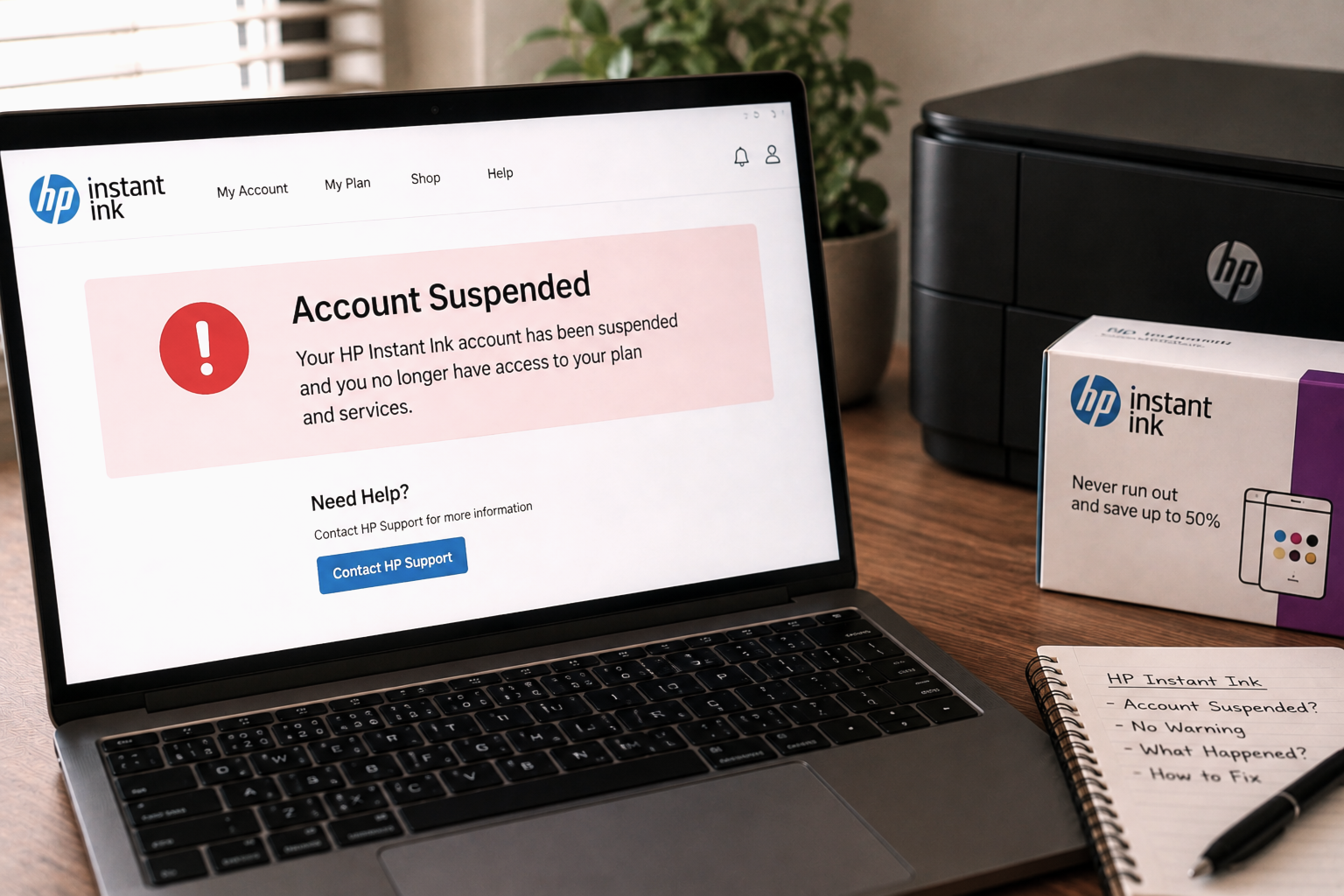
If your HP Instant Ink account was suspended without any warning, you’re not alone — and the situation is more fixable than it might feel right now. In most cases, a suspension happens for a specific reason that can be addressed directly, even if the notification never reached you.
HP Instant Ink accounts are most commonly suspended due to a failed payment, an expired card, or an unresolved billing issue. The suspension can feel unexpected if the notification email went to spam or wasn’t received. Updating your payment details in your HP Instant Ink account dashboard and restarting your printer is the first step to restoring access in most cases.
An HP Instant Ink account suspension without warning is one of the more jarring things subscribers encounter. One moment everything is working fine — the next, printing stops and the printer displays an error or subscription problem message. No prior notice, no obvious cause. For many users, the suspension email did exist, but landed in a spam folder or was sent to an old email address they no longer monitor.
The reason the suspension feels sudden is usually because HP Instant Ink sends notifications through email — and if that email doesn’t get seen, the account can move through a grace period and into suspension without the user ever realizing something was wrong. By the time the printer stops working, the suspension has already taken effect.
The good news is that most HP Instant Ink account suspensions are reversible. Understanding what triggered it is the key to resolving it cleanly and getting printing access restored as quickly as possible. For a broader look at related issues, our HP Instant Ink support guide covers other common subscription problems in one place.
Why Does the HP Instant Ink Account Suspension Feel Unexpected?
Most account suspensions don’t happen without some kind of trigger — the “without warning” part is usually about the notification not being received rather than no notification being sent. A few things commonly cause the warning to go unseen:
Beyond missed emails, a few other situations can make the suspension feel like it came out of nowhere:
- Email address changed — If you recently switched email providers or updated your personal email but didn’t update it in your HP account, notifications are still going to the old address.
- Bank auto-updated a card number — Some banks issue new card numbers automatically when cards are reissued or when fraud is suspected. The new card number isn’t reflected in your HP account until you update it manually.
- Billing date fell during a busy period — If the charge failed around a holiday or during a period when you weren’t checking emails closely, the grace period may have run out before you noticed.
- Printer appeared to work initially — HP Instant Ink typically allows a grace period before suspending the account. During that window, printing may continue normally — so there’s no obvious signal that something is wrong until printing suddenly stops.
What Causes an HP Instant Ink Account to Get Suspended?
The HP Instant Ink account suspended without warning situation almost always traces back to one of these core causes:
Failed Monthly Payment
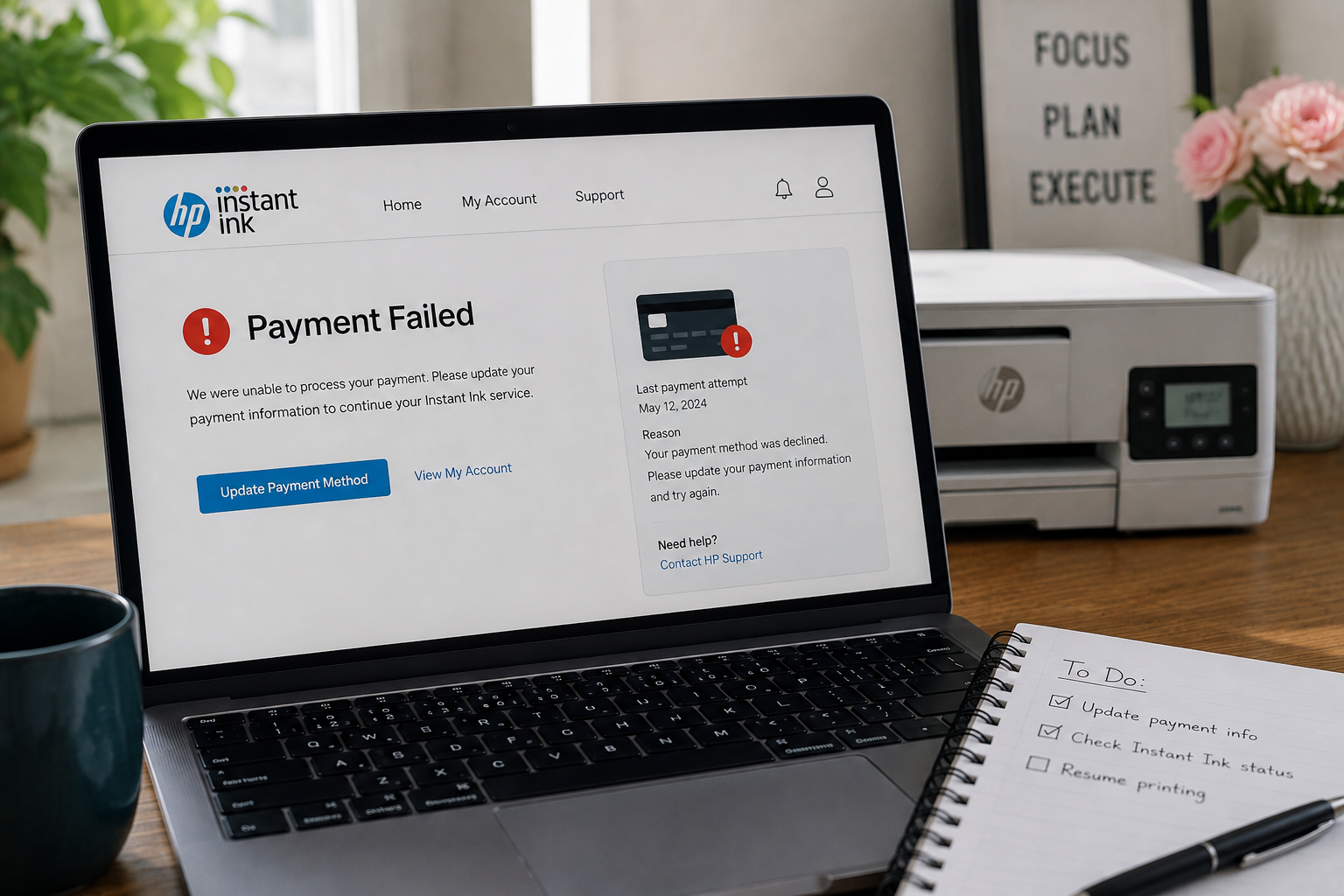
The most common cause. If the monthly subscription charge is declined — due to an expired card, insufficient funds, or a bank block — the account enters a grace period and eventually suspends if not resolved.
Expired or Replaced Card
Cards are reissued regularly. If your card expired or was replaced and the new details weren’t updated in your HP Instant Ink account, every charge after that point will fail silently.
Bank Security Block
Banks sometimes block recurring subscription charges from unfamiliar merchants without notifying the cardholder. The block doesn’t show up in your normal transaction history in an obvious way.
Billing Address Mismatch
A mismatch between the billing address on file in your HP account and what your bank holds can cause payment verification to fail, even when the card itself is valid and funded.
PayPal or Virtual Card Issue
If you pay via PayPal and the underlying bank account or card linked to PayPal changed, the HP charge can fail without any obvious indication in your PayPal balance.
Unusual Account Activity Flag
In less common cases, unusual account activity — such as multiple login attempts or a location change — can trigger a temporary account hold that affects printing access.
What Happens to Your Account During Suspension?
Understanding the sequence HP Instant Ink follows before and during a suspension helps clarify why printing access stopped and what state the account is currently in:
Billing Charge Fails
On the scheduled billing date, the charge to your saved payment method is declined. HP records the failure and begins the notification and grace period process.
Email Notification Sent
HP sends an alert to the email on file. This is the notification that most users miss — either due to spam filtering or an outdated email address on the account.
Grace Period Begins
In many cases, HP allows a short grace window during which printing continues normally. The length of this window can vary. If payment is resolved during this period, the account continues without interruption.
Retry Attempts Made
HP may retry the payment automatically one or more times during the grace period. If a retry succeeds, the suspension is avoided and the account returns to normal.
Account Suspended — Printing Stops
If the grace period ends without a successful payment, the account is suspended. Instant Ink cartridges are deactivated and the printer displays a subscription or account error. This is the point most users discover the problem.
A suspended account can typically be reactivated by resolving the underlying issue — most commonly by updating payment details. A cancelled account is a separate state and may require a full re-enrollment. Check your account dashboard carefully to understand which state your account is currently in.
How to Fix an HP Instant Ink Account Suspended Without Warning
Work through these steps in order. For most users, the HP Instant Ink account suspended without warning situation is resolved within the first three steps once the cause is identified.
- Log in to your HP Instant Ink account immediately. Go to hpinstantink.com and sign in with your account email. The dashboard will show the current status of your subscription — suspended, active, payment due, or cancelled. This is the single most important first step, as it tells you exactly what you’re dealing with.
- Check your email — including spam and promotions folders. Look for any emails from HP or hpinstantink.com from the past 7–14 days. These will contain details about what happened, when the charge failed, and any actions HP has already taken. Knowing the timeline helps you respond correctly.
- Identify the payment method currently on file. In the billing section of your account dashboard, check which card or payment method is saved. Look at the expiry date, the card number, and the billing address. Compare this against your current card details to spot any discrepancies.
- Update your payment method if needed. If your card has expired, been replaced, or the billing address has changed, update the details in your account. Remove the old card and add the new one carefully, making sure every field matches your bank records exactly — including the billing address format.
- Clear any outstanding balance manually if the option is available. Some account dashboards show an option to pay the outstanding amount directly after updating the payment method. Using this speeds up reactivation rather than waiting for the next scheduled retry.
- Contact your bank to check for any payment blocks. If your payment method looks correct but the charge keeps failing, your bank may have placed a block on the HP charge. Call your bank or check online banking for any flagged or blocked transactions and ask them to authorize future charges from HP Instant Ink.
- Restart the printer after resolving the account issue. Once the account shows as active or payment has been confirmed, power your printer off completely, wait 60 seconds, and power it back on. Keep it connected to Wi-Fi and give it 5–10 minutes to sync with HP’s servers before attempting a test print.
- Reinstall the cartridges if printing still doesn’t work. If the printer has synced but still won’t print, open the cartridge door, remove the Instant Ink cartridges, wait 30 seconds, and reinstall them. This prompts the printer to run a fresh authorization check against your now-active account.
Once the account issue is resolved and payment is confirmed, the printer typically restores printing access within a few minutes of syncing. In some cases it can take up to 15–20 minutes. Restarting the printer immediately after resolving the account issue is the most reliable way to trigger a fast sync.
Common HP Instant Ink Account Suspended Situations
This is one of the most reported situations. Check your spam, junk, and promotions folders for any emails from hpinstantink.com going back two weeks. Also confirm that the email address on your HP account is the one you currently use — if you changed email providers at some point and didn’t update the account, notifications have been going to the old address. Log into the dashboard directly to find the suspension reason regardless of whether you received the email.
Updating the card is only the first step. The account also needs the outstanding payment to be processed successfully before the suspension lifts. Look for a “Pay Now” or “Update Payment” option in your account dashboard that lets you trigger the payment manually. If no such option is visible, the system may retry automatically — but this can take time. Restarting the printer after a successful payment helps speed up the sync.
In many cases, yes. If the account moved from suspension to cancellation due to an unresolved payment, re-subscribing to HP Instant Ink through the account dashboard is typically possible. When you re-enroll, HP usually ships new cartridges to the re-enrolled printer. Your previous print history and plan settings may or may not carry over depending on how long the account was inactive.
PayPal-based payments can fail if the underlying bank account or card linked to your PayPal changed or ran low. Log into PayPal and check that your primary payment method is active and funded. Then return to your HP Instant Ink account and check whether updating or re-confirming the PayPal connection resolves the billing issue. In some cases, switching to a direct card payment method resolves recurring PayPal-related billing failures more reliably.
How to Prevent Future Unexpected Suspensions
Once you’ve resolved the current suspension, a few simple habits can significantly reduce the chance of it happening again without warning:
Keep your account email address current
Make sure the email address on your HP Instant Ink account is one you actively monitor. Any time you change your primary email, update the HP account as well. This ensures billing alerts always reach you.
Add HP Instant Ink to your email safe sender list
Adding hpinstantink.com to your email contacts or safe senders list reduces the chance of billing notifications landing in spam. This is a quick fix that makes a noticeable difference in catching alerts early.
Update your card details as soon as a new card arrives
When a replacement or renewed card arrives in the mail, update it in your HP Instant Ink account on the same day. Don’t wait until the next billing cycle — the old card may stop working before then.
Check your account dashboard periodically
A quick monthly login to your HP Instant Ink account dashboard takes less than a minute and lets you catch any billing flags, payment alerts, or status changes before they escalate to a suspension.
Verify your bank hasn’t flagged the recurring charge
Some banks periodically review and block recurring charges as part of their fraud monitoring. If your bank changes its policies or flags the HP charge, a quick call to authorize it prevents the next billing cycle from failing unexpectedly.
If You Decide Not to Reactivate After a Suspension
If the HP Instant Ink account suspension has prompted you to reconsider the subscription altogether, the path forward is straightforward. Your Instant Ink cartridges will remain deactivated without an active subscription, so you’ll need to switch to standard retail cartridges compatible with your printer model.
Retail cartridges work without any subscription, internet check-in, or account verification. They’re available at most electronics and office supply retailers. Check your printer’s model number — usually printed on the front panel or underside of the device — and purchase the corresponding retail cartridge series.
If cost was the primary reason for using Instant Ink, it’s worth comparing your average monthly print volume against retail cartridge pricing before deciding. For moderate to high print volumes, a subscription model typically remains more economical. For lighter printing, retail often works out better.
Frequently Asked Questions
Common questions about HP Instant Ink account suspensions
The clearest way to check is to log into your HP Instant Ink account at hpinstantink.com and look at the subscription status on your dashboard. A suspended account will typically show a billing alert or payment failure notice alongside the suspended status. A cancelled account shows as inactive or cancelled. The distinction matters because suspended accounts can usually be reactivated by resolving the billing issue, while cancelled accounts may require a fresh enrollment.
In many cases, reactivation is fairly quick once the billing issue is resolved. After updating your payment method and clearing any outstanding balance, restarting the printer typically triggers a sync within a few minutes. Full printing access is often restored within 5–15 minutes of a successful payment confirmation and printer restart. The exact timing can vary depending on your account status and how long the suspension has been in place.
In most cases, yes. Once the account is reactivated and the printer syncs with HP’s servers, the Instant Ink cartridges should be re-authorized and printing should resume. If the cartridges don’t respond after the sync, removing and reinstalling them usually prompts a fresh authorization check. In less common cases — particularly if the suspension was lengthy — HP may need to issue replacement cartridges.
Billing practices can vary, but in most cases HP charges for the billing period during which the suspension occurred — as that period was still active. Any pages printed during a grace period are typically counted against your plan. Once the account is resolved and reactivated, the billing cycle usually continues from where it left off or resets to a new cycle. Checking your billing history in the account dashboard gives the clearest picture of what was charged and when.
Billing issues are by far the most common cause. However, in some cases unusual account activity or a technical issue with account verification can trigger a temporary hold. If your account shows as suspended but your billing history appears clean and payments have been going through successfully, logging in and checking for any account alerts or messages is the right starting point. The dashboard will typically indicate the reason for the suspension.